In a company where responsibilities are clearly divided by function, it is only natural that an employee’s access in the ERP system should match those responsibilities. An operator who issues invoices needs customers, items and sales documents, but not the accounting reports.
In Business Central access is controlled through permission sets, and the system ships with several predefined ones. Building a new one from scratch, however, means knowing the objects in the database and takes a fair amount of time. The alternative is a feature that records permissions automatically while we work, and we will show you how to use it for a sales invoicing operator.
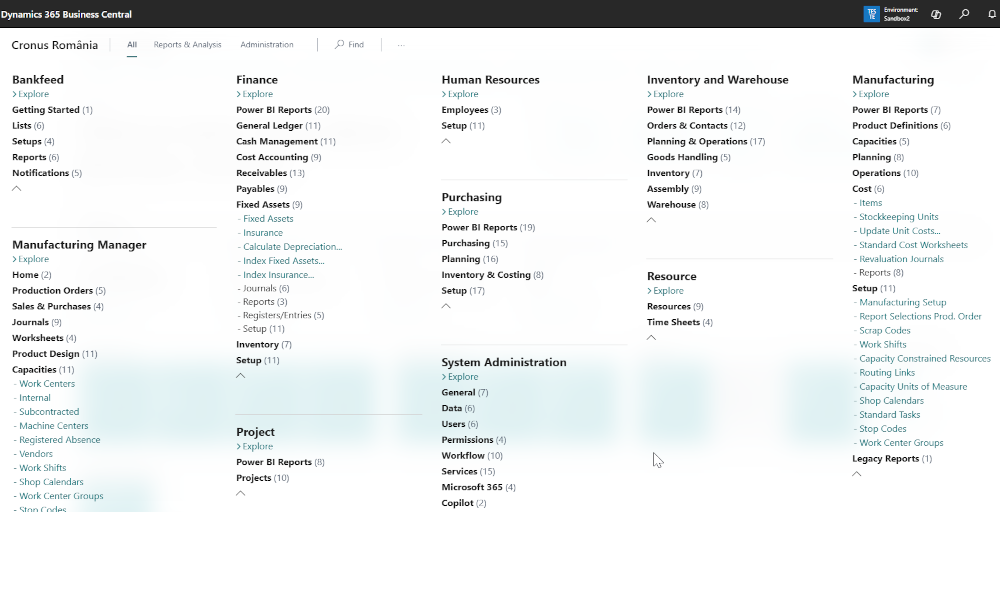
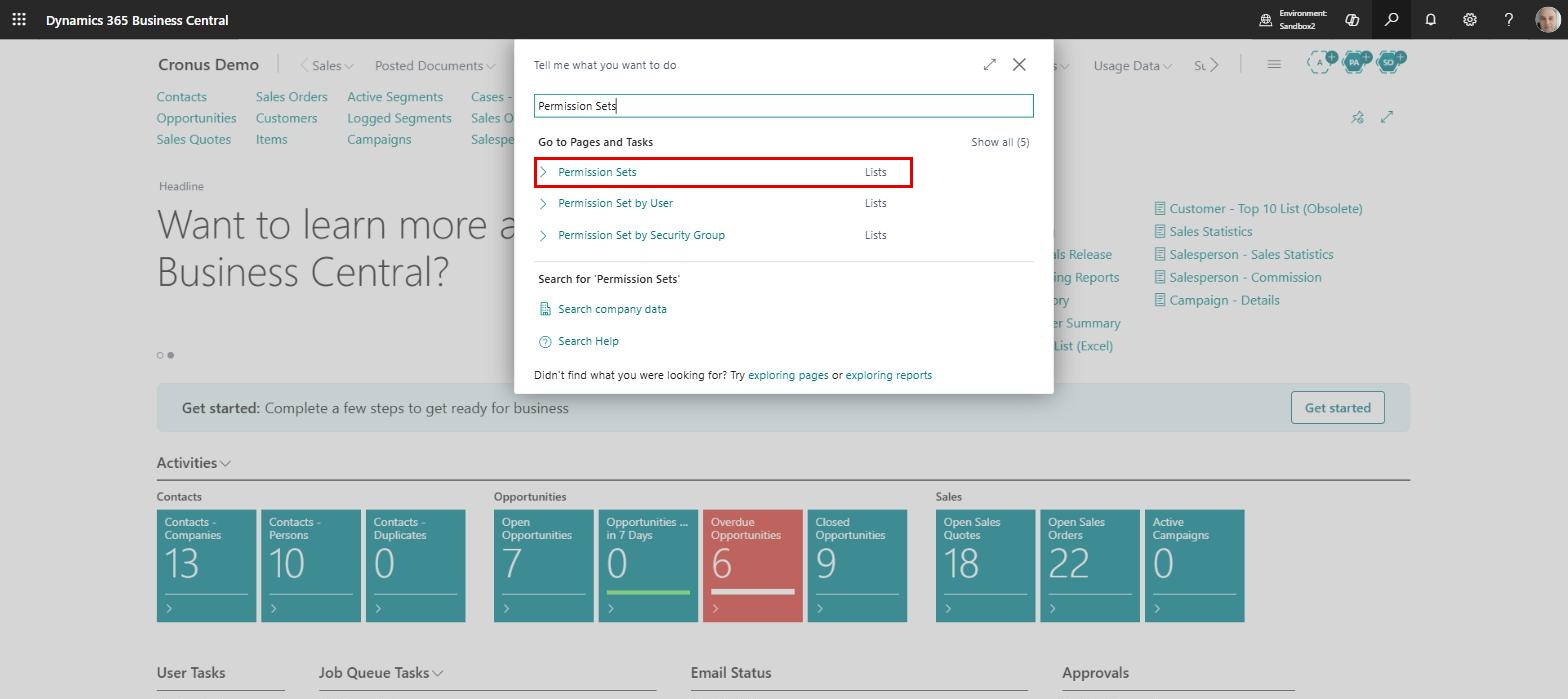
We start from the “Permission Sets” page, which is easiest to reach using the search function:
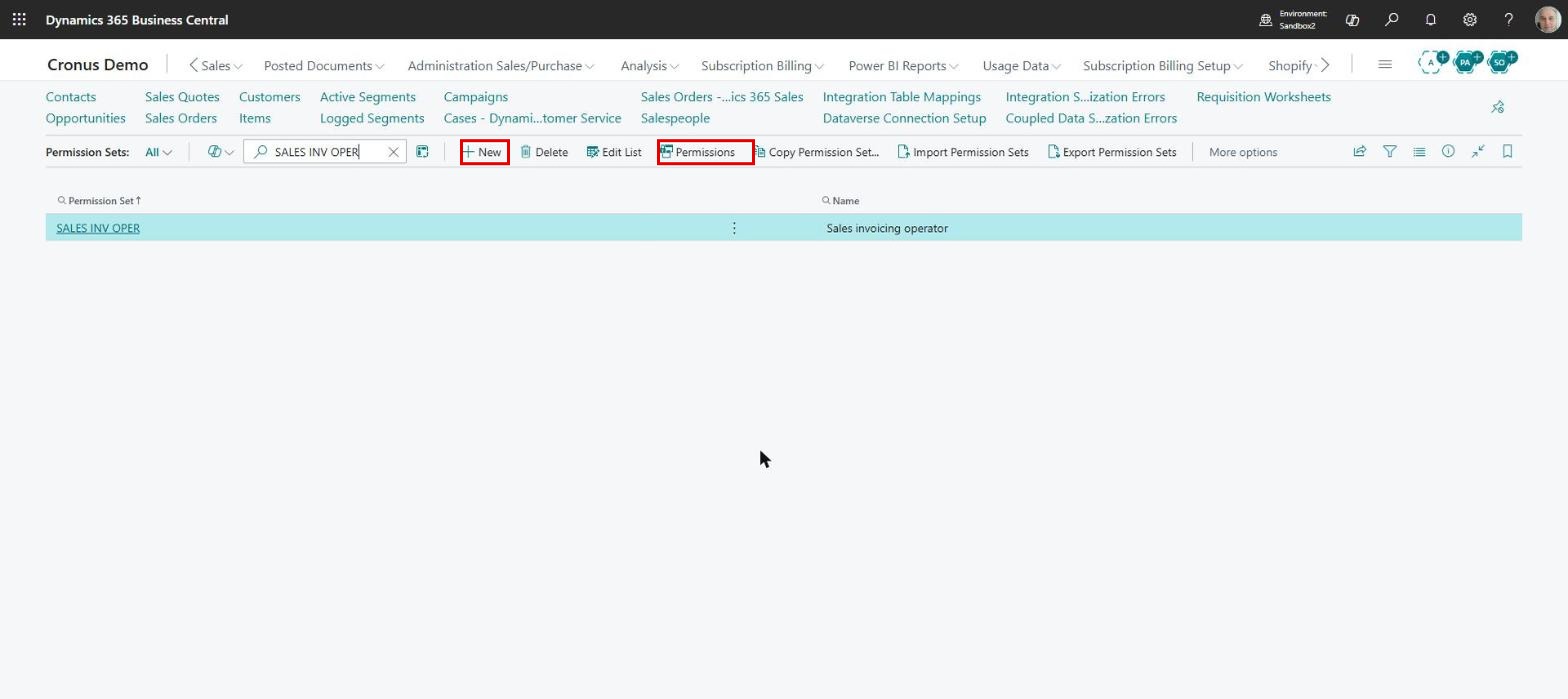
With the “New” button we add an empty line to the list, where we enter a code and a name, in our example “SALES INV OPER” and “Sales invoicing operator”. We then select the new line and click the “Permissions” button:
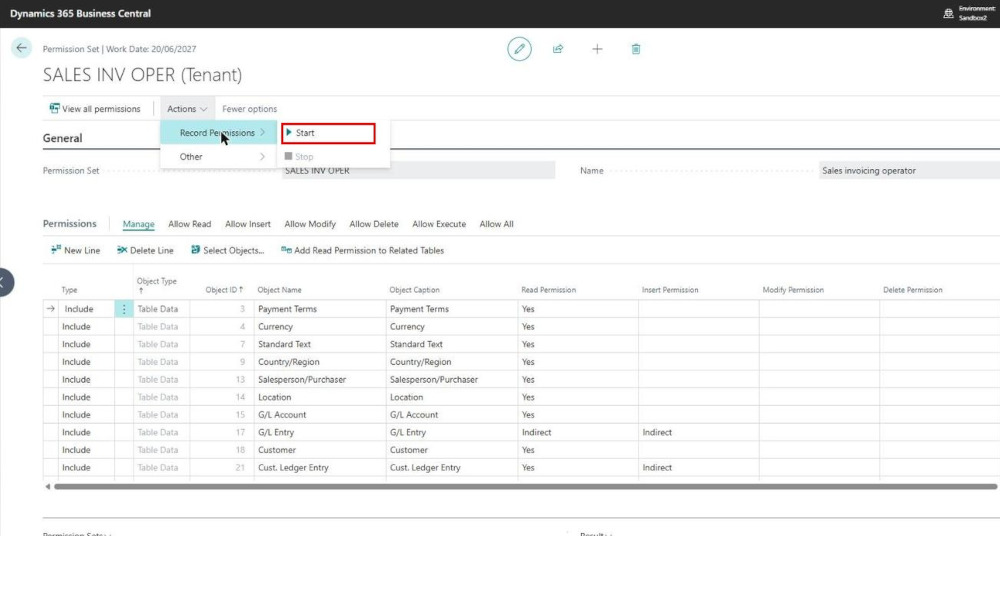
The permission set card opens, and from there we switch on the feature this article is about, choosing the menu path Actions->Record Permissions->Start:
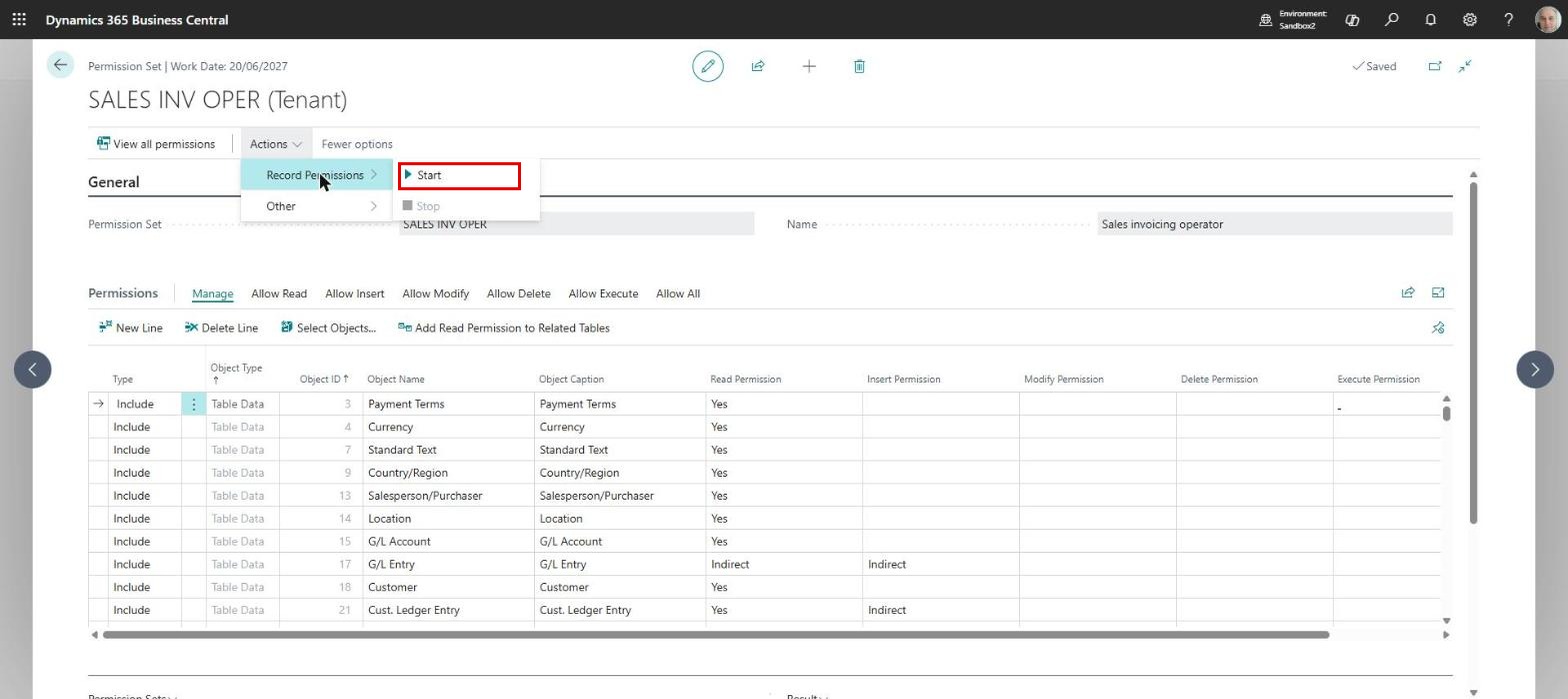
The system asks for a confirmation, then we leave the card open and carry out, in the same session, all the operations the user we assign the set to will perform. In our example we create a sales invoice and post it.
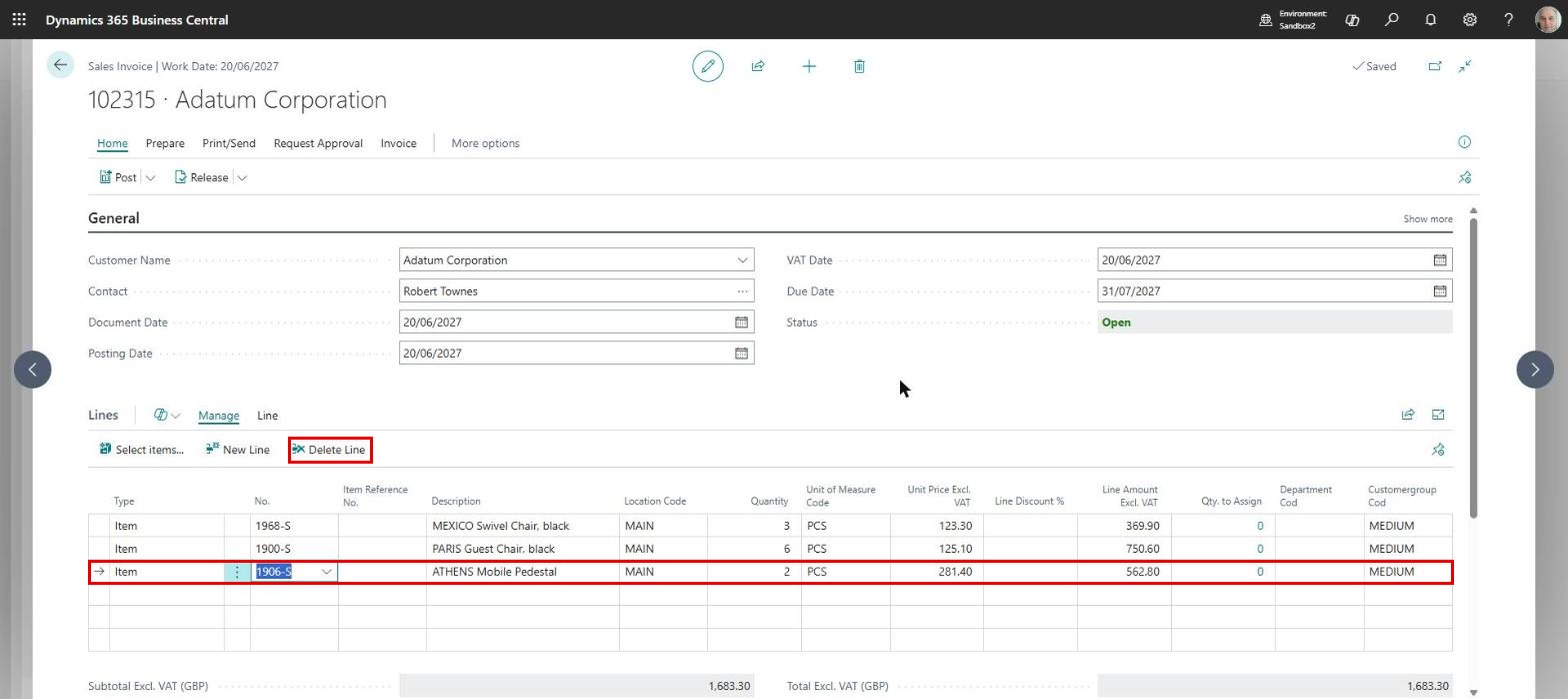
We should be careful not to stop at entering data: for the system to grant the modify and delete permissions as well, it is worth modifying and deleting at least one field on the header and one line of the document:
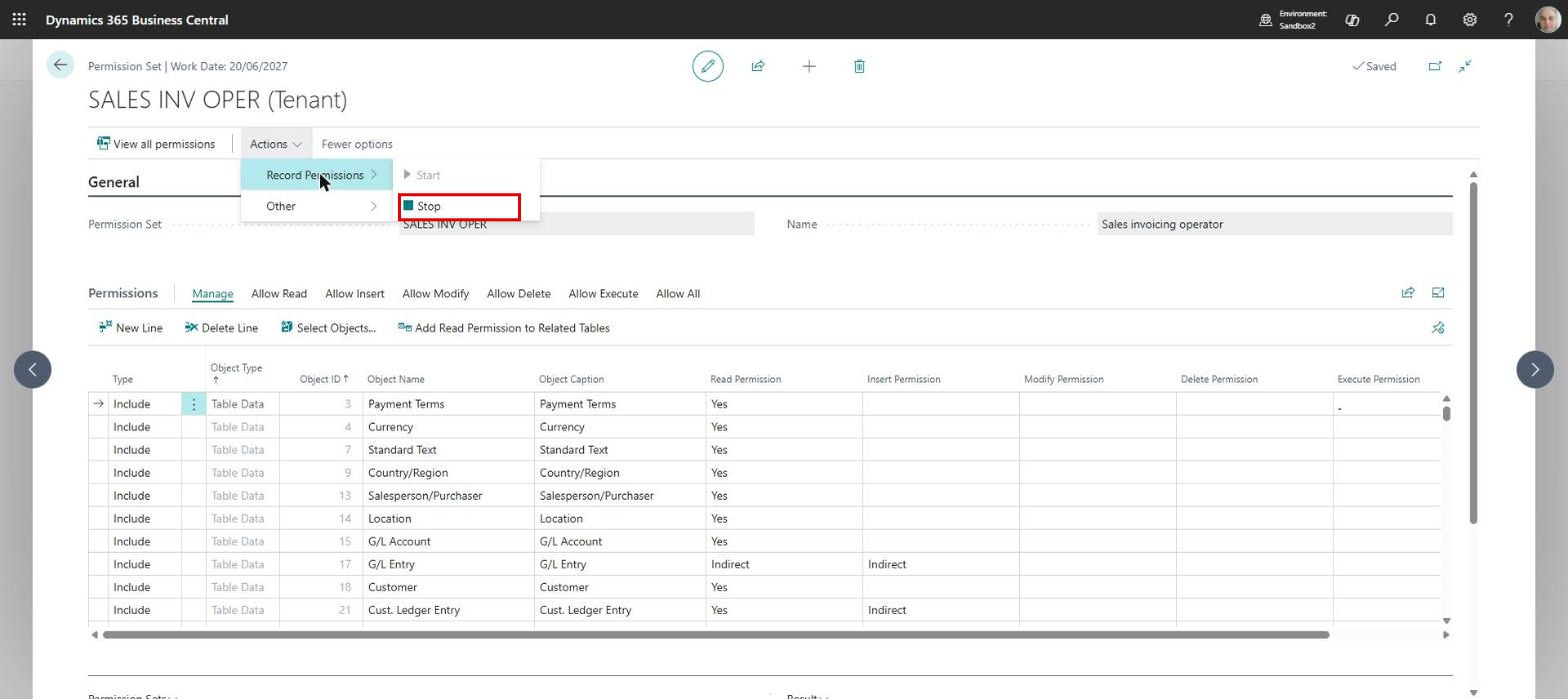
Once we have finished, we return to the permission set card and stop the recording from Actions->Record Permissions->Stop, then confirm that we want to add the recorded permissions:
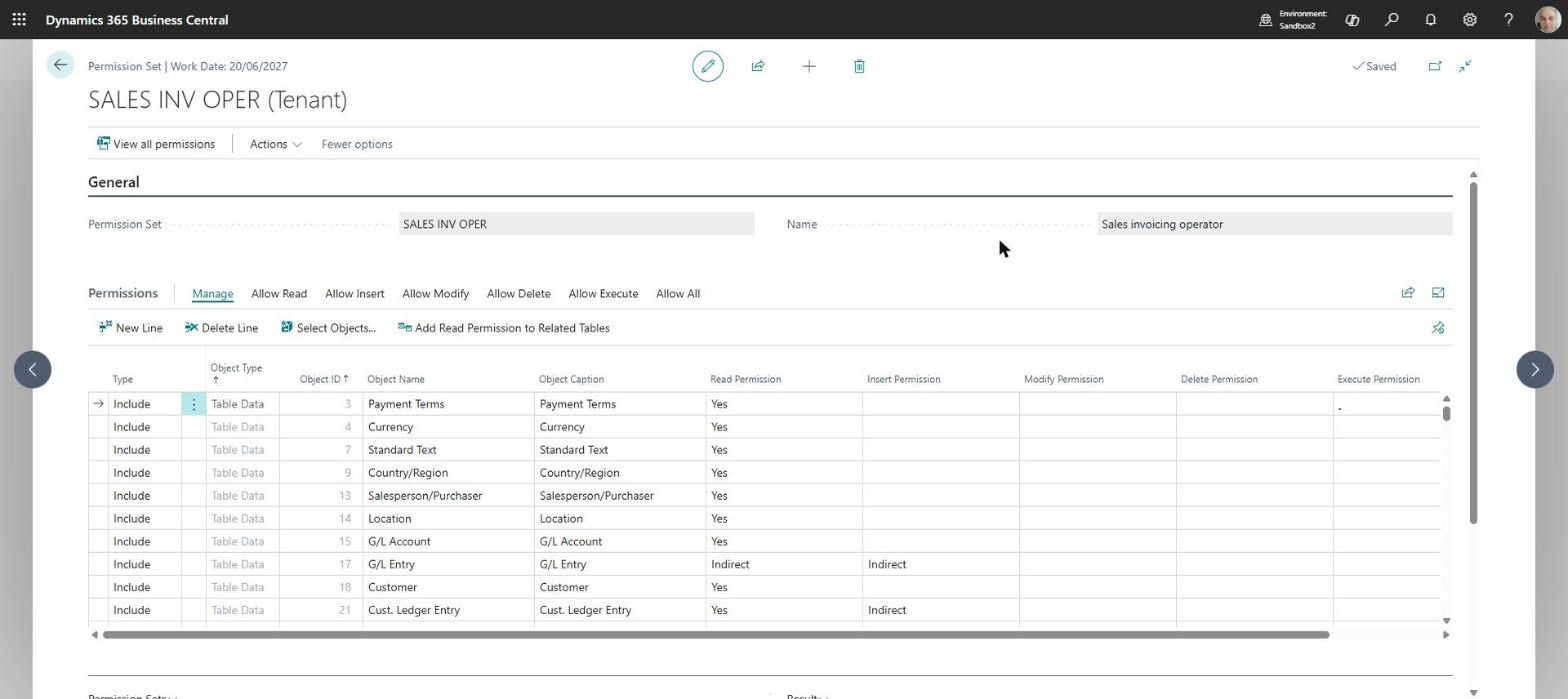
The end result is that the system fills in the objects and the permissions per object on its own, according to the operations we carried out:
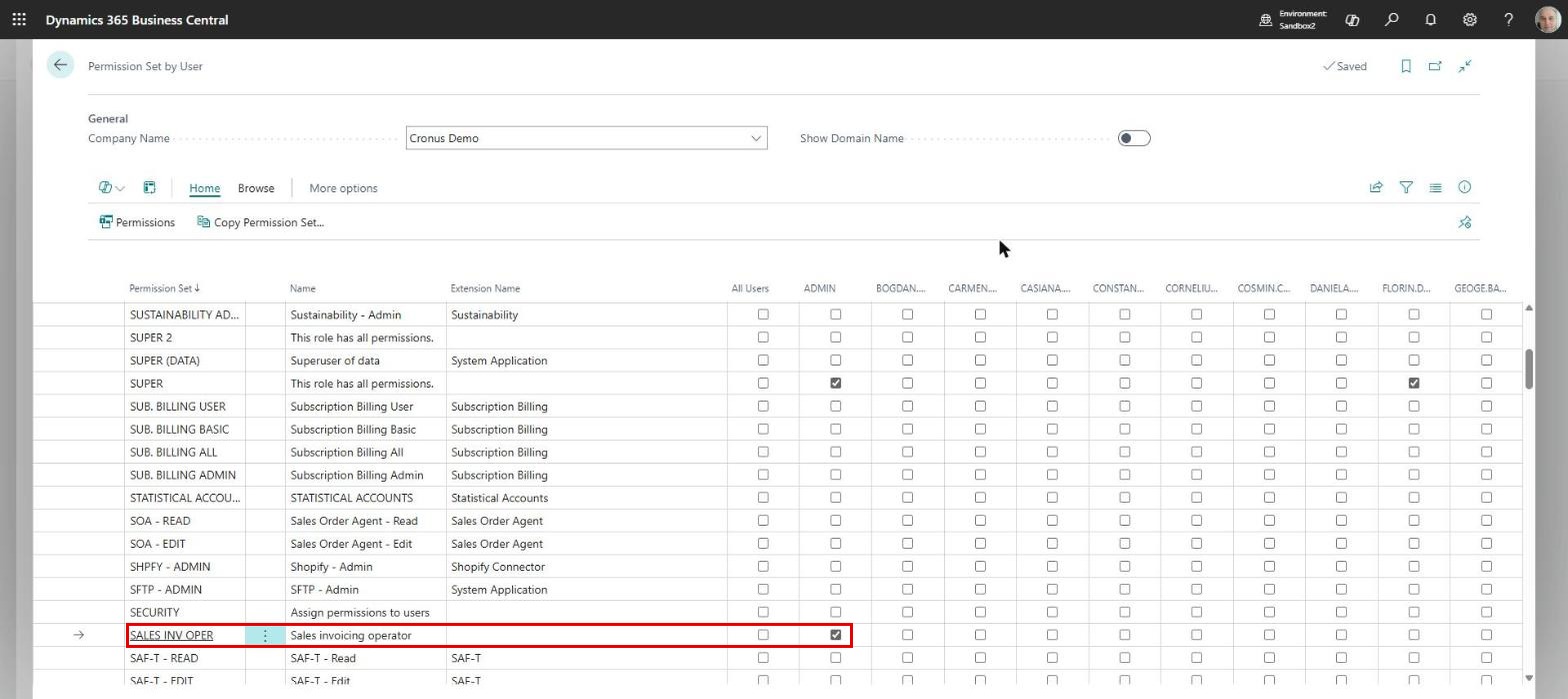
If some operations were missed, we can run the recording again and the new permissions will be added to the existing ones. To assign the set to users we use the “Permission Set by User” page, where we select the line of our set and tick the users who will receive it:
We recommend building your permission sets starting from this automatic recording and only then adjusting them by hand. In a few minutes you will have a set that matches your company’s own workflow exactly, without needing technical knowledge of the database.
ELIAN Solutions has been active since 2008 as an implementer of Microsoft Dynamics 365 Business Central . With a team of over 80 specialists and a portfolio of more than 400 clients, ELIAN Solutions is one of the leading ERP partners.