
Business transactions create receivables and payables that are normally settled at an agreed due date, and immediate payment is the exception. Any application running a company’s commercial activity therefore has to link its invoices with the payments made against them, and show how much is left on each.
The finance module in Dynamics Business Central makes that link through application, which happens as the bank or cash payment is recorded. Note that Business Central has a single concept of payment, so either we pay a vendor or a customer pays us.
Below we go through applications in two cases: a customer paying one invoice, and one payment covering several. Payments are recorded through the general or payment journals.
Paying a single invoice
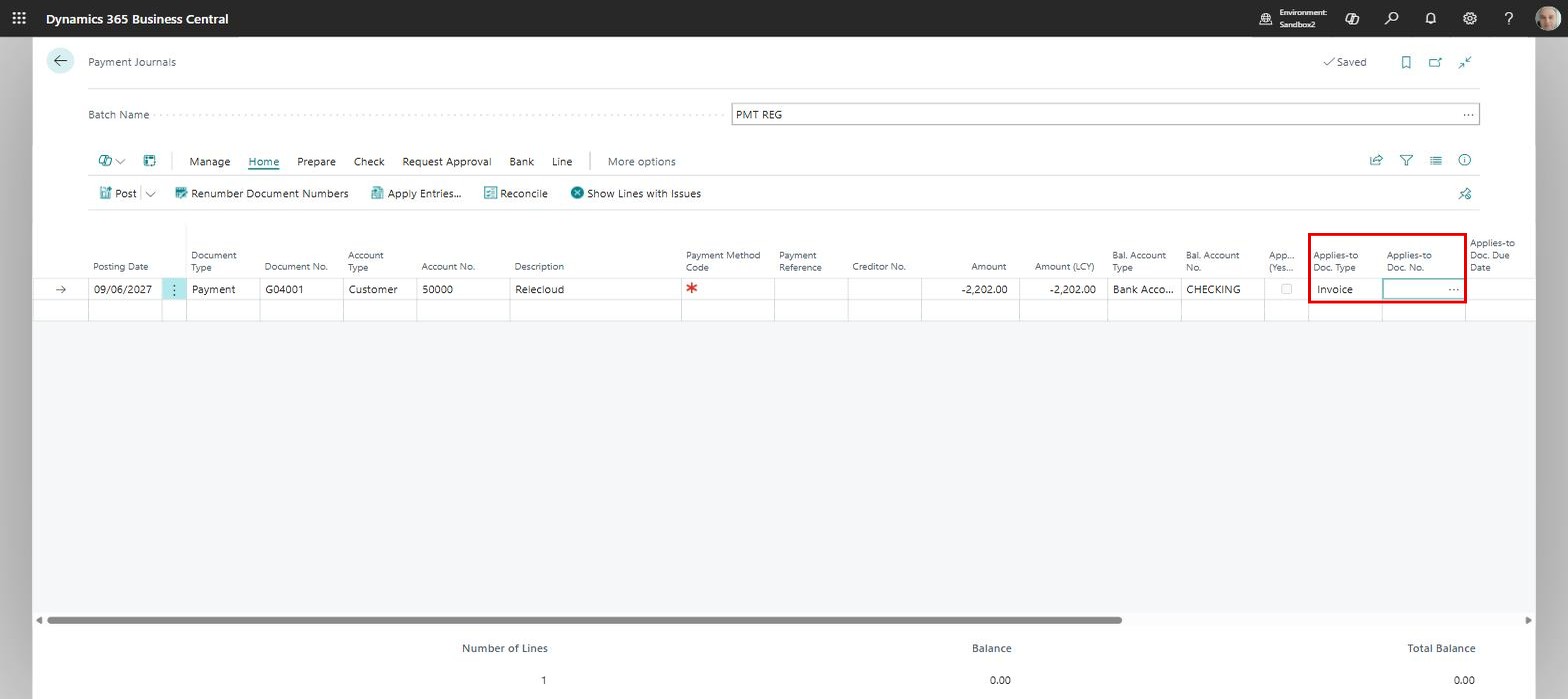
When a single invoice is paid, the application can be made on the payment line itself, through the fields “Applies-to Doc. Type” and “Applies-to Doc. No.”. Below, customer “Relecloud” has paid 2,202.00 against payment “G04001”. We set the first field to “Invoice”, and the lookup on the second lists the invoices we can apply to:
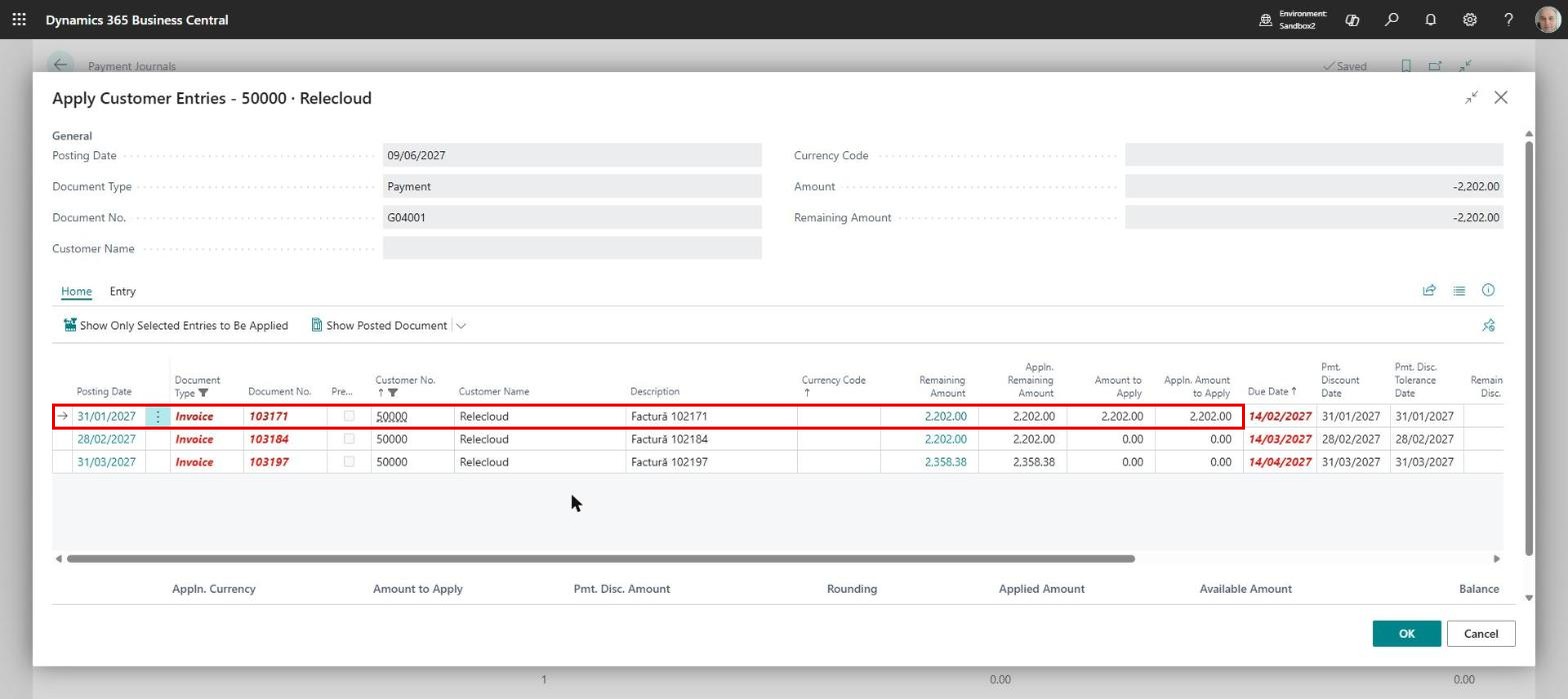
The header carries the payment, document number and amount, and the lines the open invoices. We position ourselves on the invoice we want and close the window with “OK”:
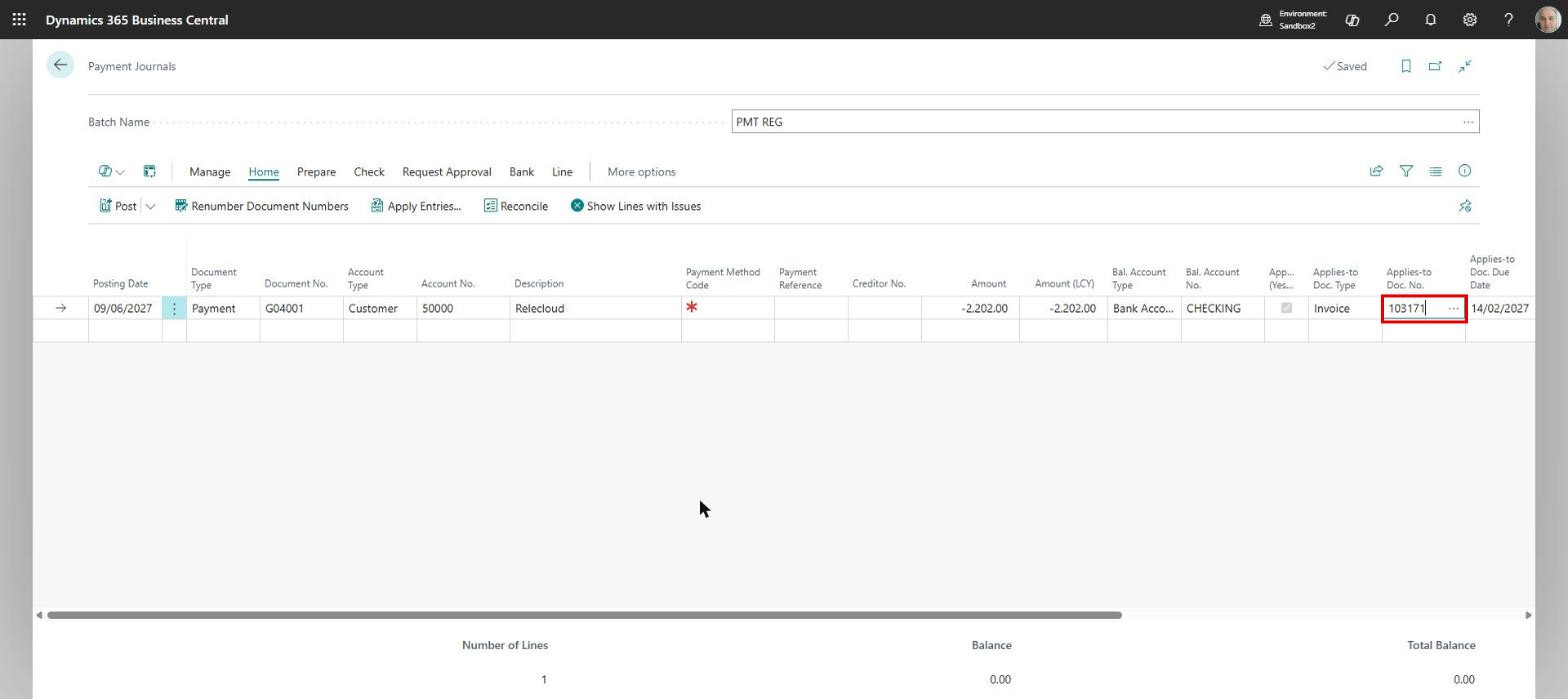
Back on the journal line, “Applies-to Doc. No.” now holds the number of the invoice the payment is applied to:
The application itself is only performed when the line is posted, updating general ledger entries, customer ledger entries and bank account ledger entries.
Paying several invoices
When a customer sends one payment covering several invoices, we take a different route and choose “Apply Entries” from the payment line:
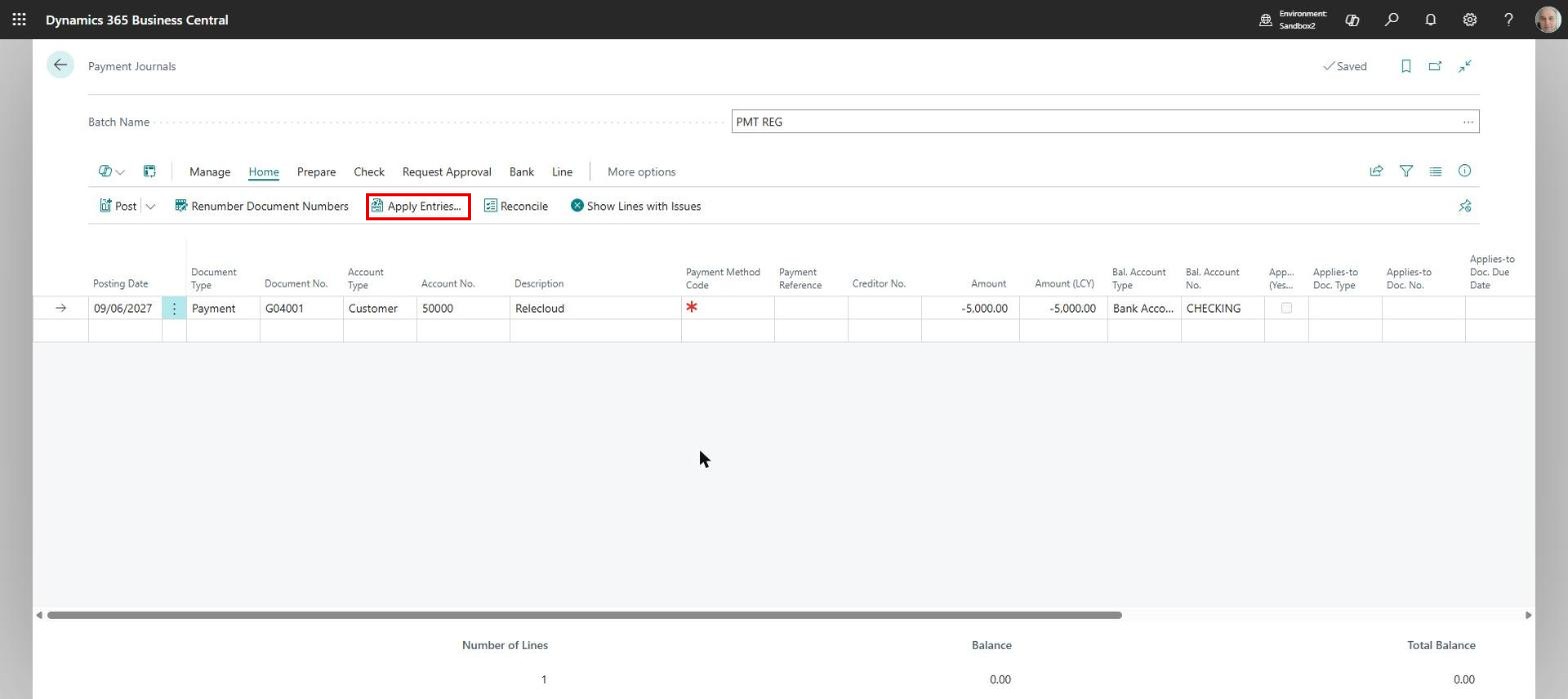
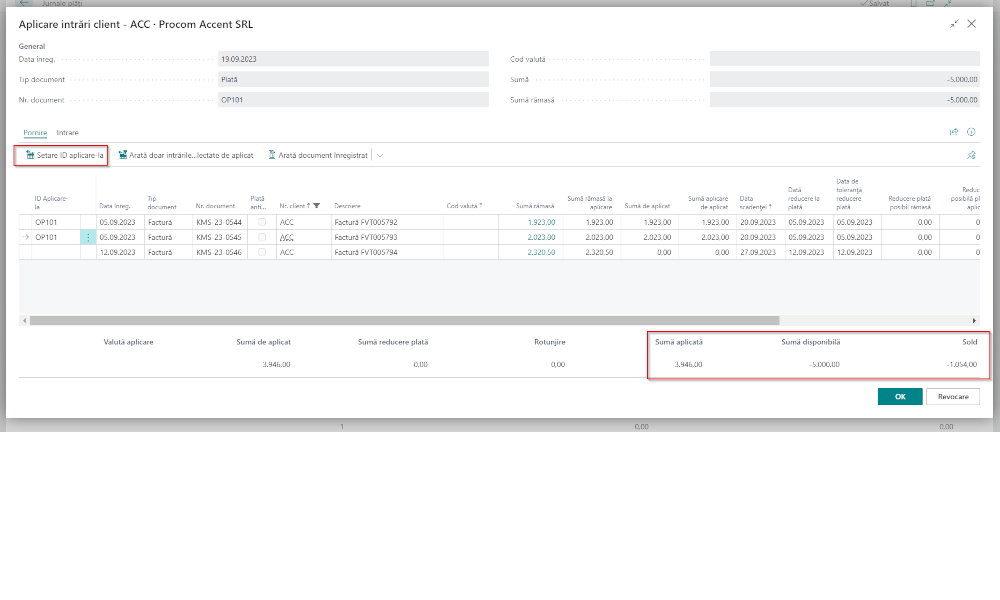
The same page opens, but here we work differently. We position ourselves on an invoice line and click “Set Applies-to ID”; the confirmation is the payment’s document number appearing on that line, and clicking again removes it:
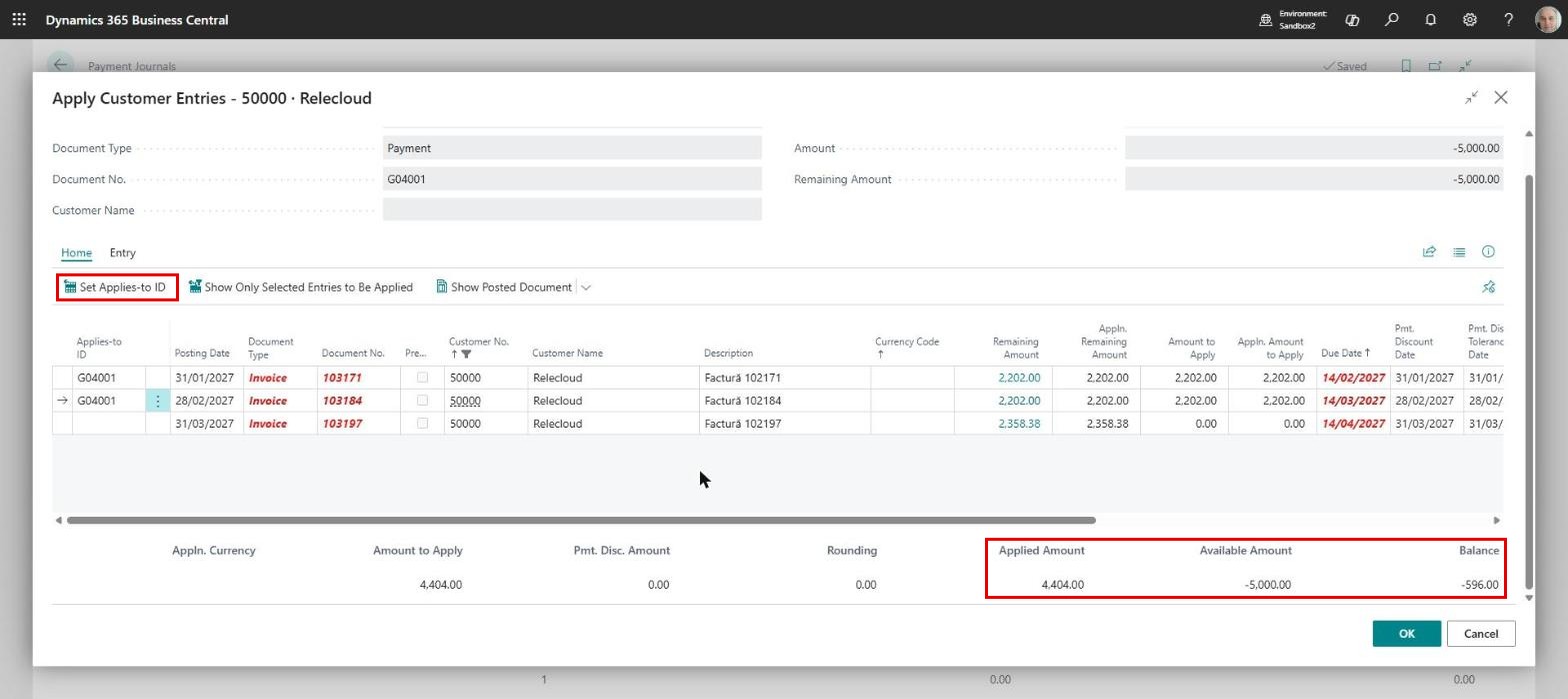
Notice the fields “Applied Amount”, “Available Amount” and “Balance” in the footer. The first shows how much has been applied, the second the total of the payment, the third the difference. They are worth watching, because a payment spread over several invoices usually needs a partial application too. Here 4,404.00 of the 5,000.00 received is applied and 596.00 is left:
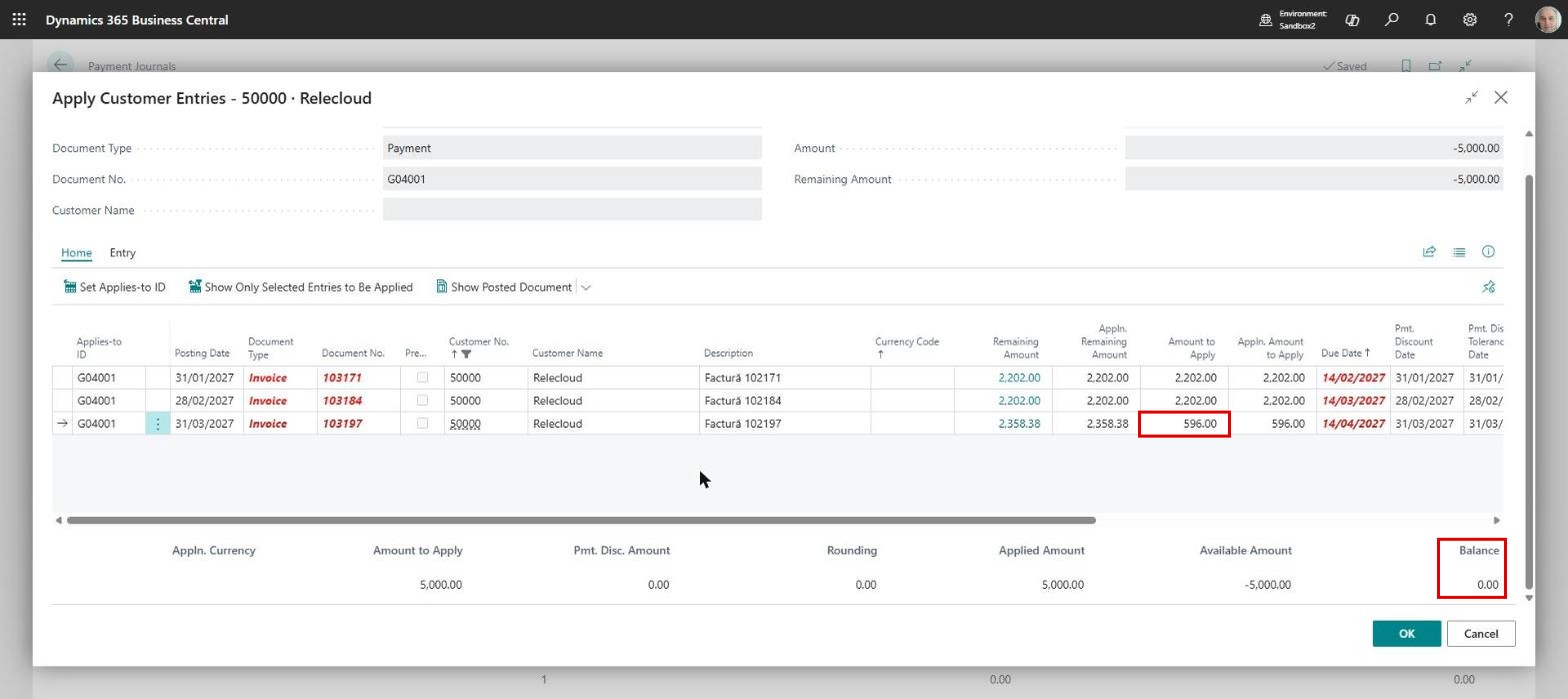
For that to be correct, “Amount to Apply” on the third line has to carry the amount left over, 596.00, so that “Balance” reads zero when we close the window.
Sometimes the link between payment and invoice cannot be established straight away and the payment is applied later; sometimes an application is made in error and has to be reversed. We will cover both in a future article.
ELIAN Solutions has been active since 2008 as an implementer of Microsoft Dynamics 365 Business Central . With a team of over 80 specialists and a portfolio of more than 400 clients, ELIAN Solutions is one of the leading ERP partners.