Companies that manage inventory often need to transact items in multiple units of measure. For example, an item might be purchased in bags (one unit of measure), sold in packages (another unit of measure), while the internal stock is tracked in kilograms (the base unit of measure).
To address these business needs, the Dynamics 365 Business Central ERP system provides the capability to define and use different units of measure for the same item, in addition to the base unit of measure. These units of measure can be used for purchasing and selling. In this article, we will demonstrate how to define these units of measure and how to allocate them on the item card.
Defining Units of Measure
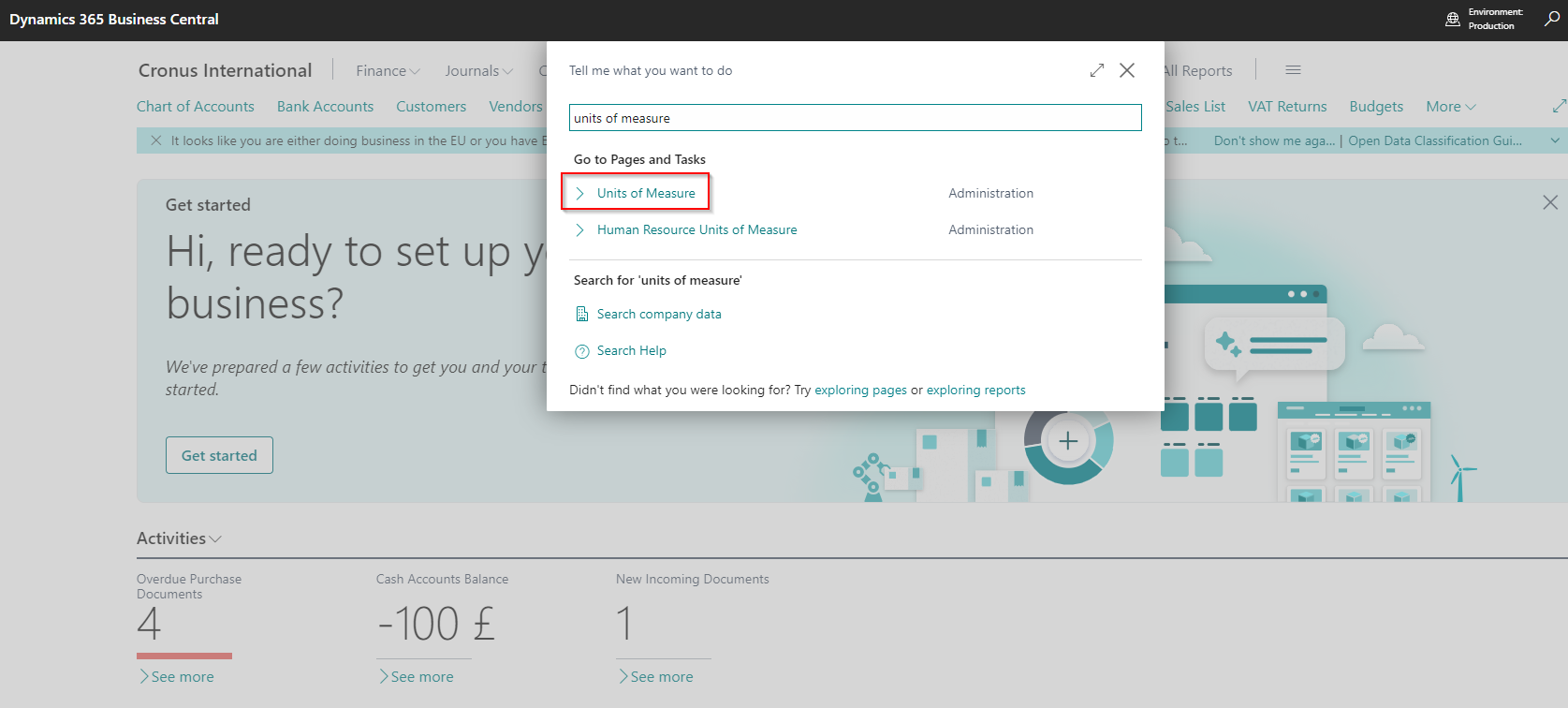
First, we need to define the units of measure that will be used. To do this, you need to access the “Units of Measure” page, which can be easily found using the search function in Business Central:
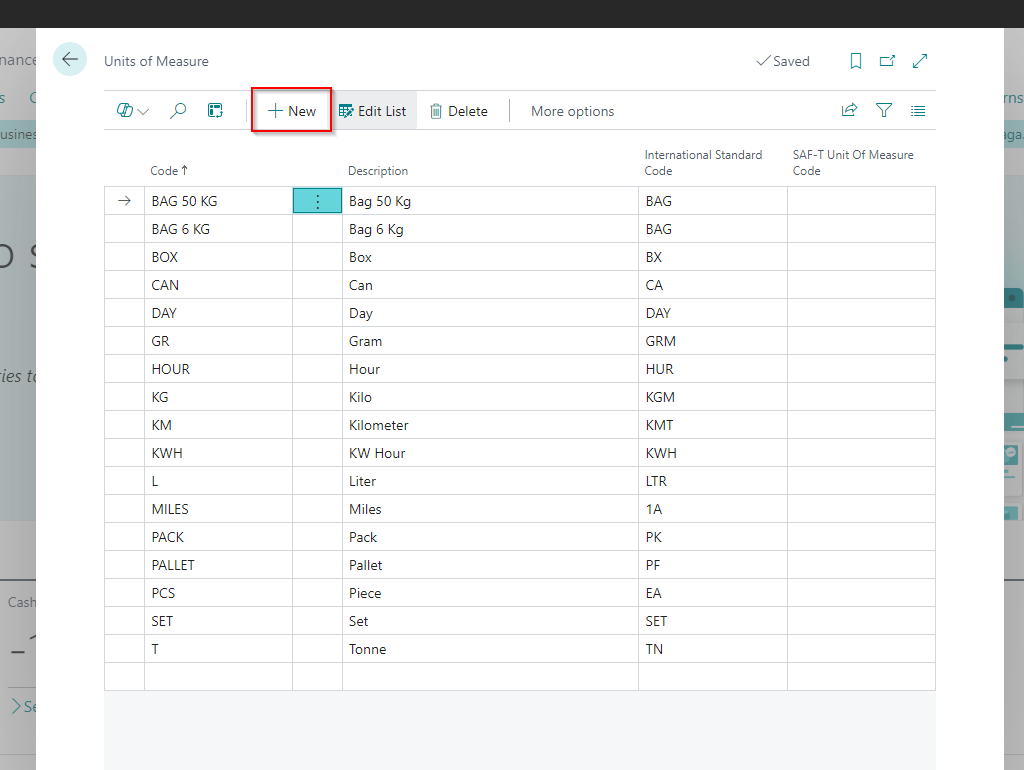
Open the list of units of measure, click the “New” button, and create the necessary units of measure by entering a code and a description.
Allocating Units of Measure on the Item Card
The units of measure created in the previous step are generic and need to be assigned to each item card. To do this you have to open the item card and allocate three types of units of measure: the base unit of measure, the purchase unit of measure, and the sales unit of measure.
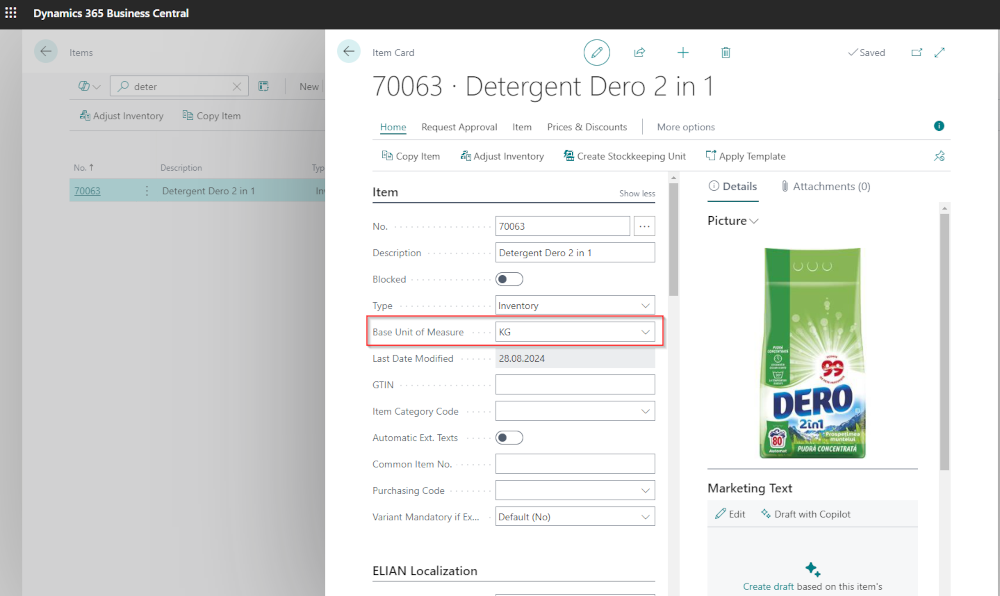
The base unit of measure is usually defined when the item is created, as it is required for operating with the item, since the quantitative stock record in the system is maintained in this unit of measure. The other two, for purchasing and selling, can be added later.
The base unit of measure is located in the main section of the item card. To allocate a base unit of measure, click the arrow button in the corresponding field and select a unit of measure from the list of existing units.
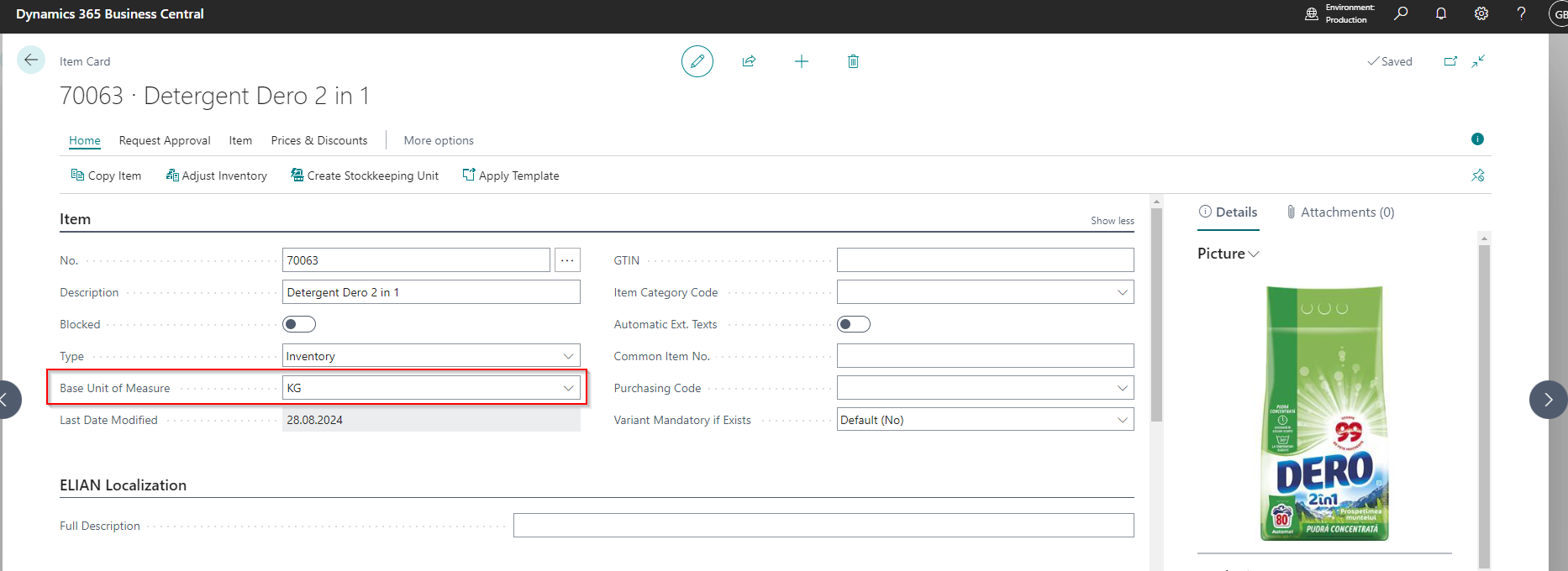
To see how to access the item card and define other elements of it, we recommend reading the article: How to Set Up an Item in Business Central
For the purchase unit of measure, go to the “Replenishment” section of the item card, click the button in the “Purchasing Unit of Measure” field and a list will open, initially containing only the base unit of measure:
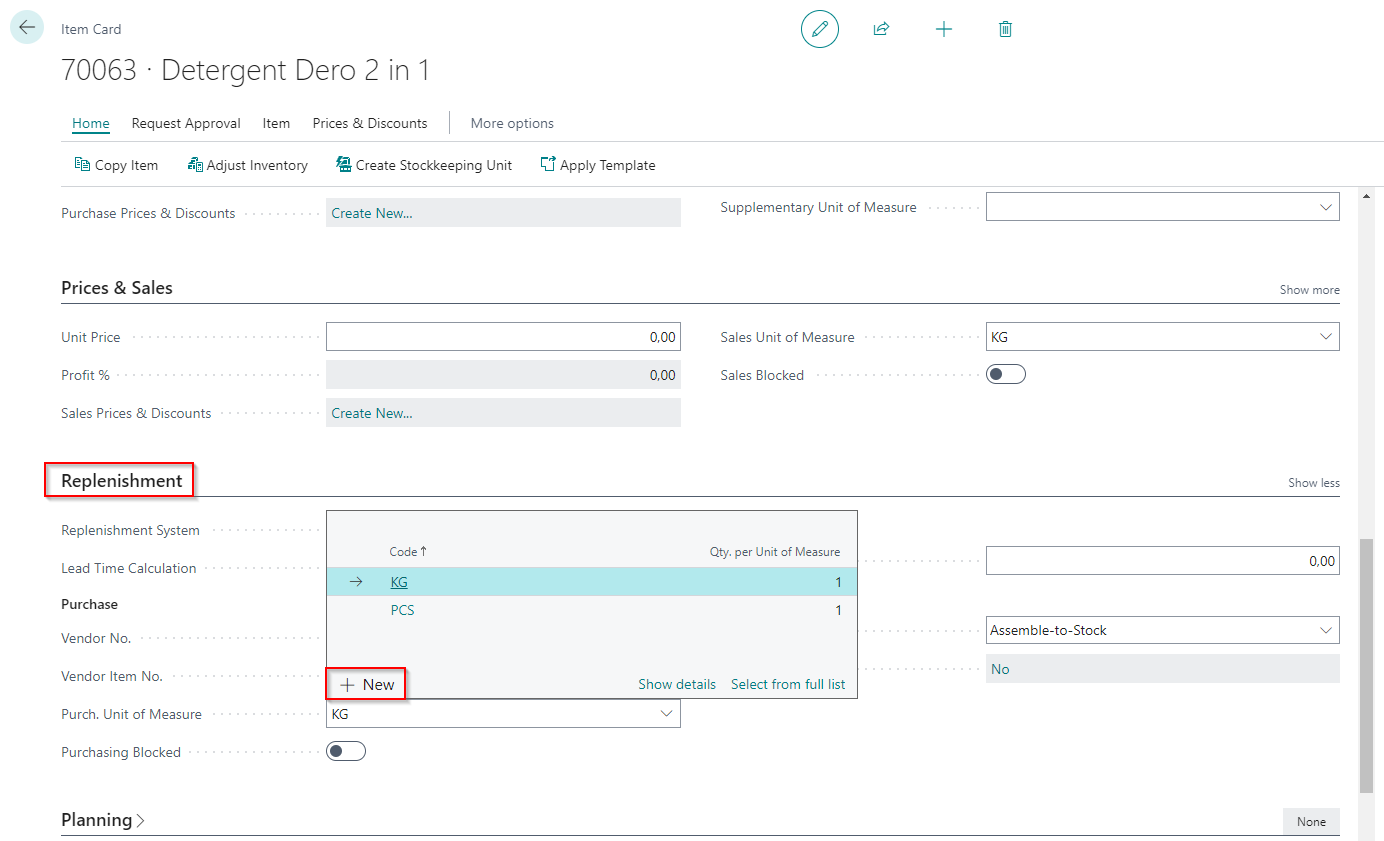
Click the “New” button and a new window will open (see the image below), where you can select a purchasing unit of measure code (from those defined earlier) on a blank line, and you can set a conversion factor in the “Qty. per Unit of Measure” field.
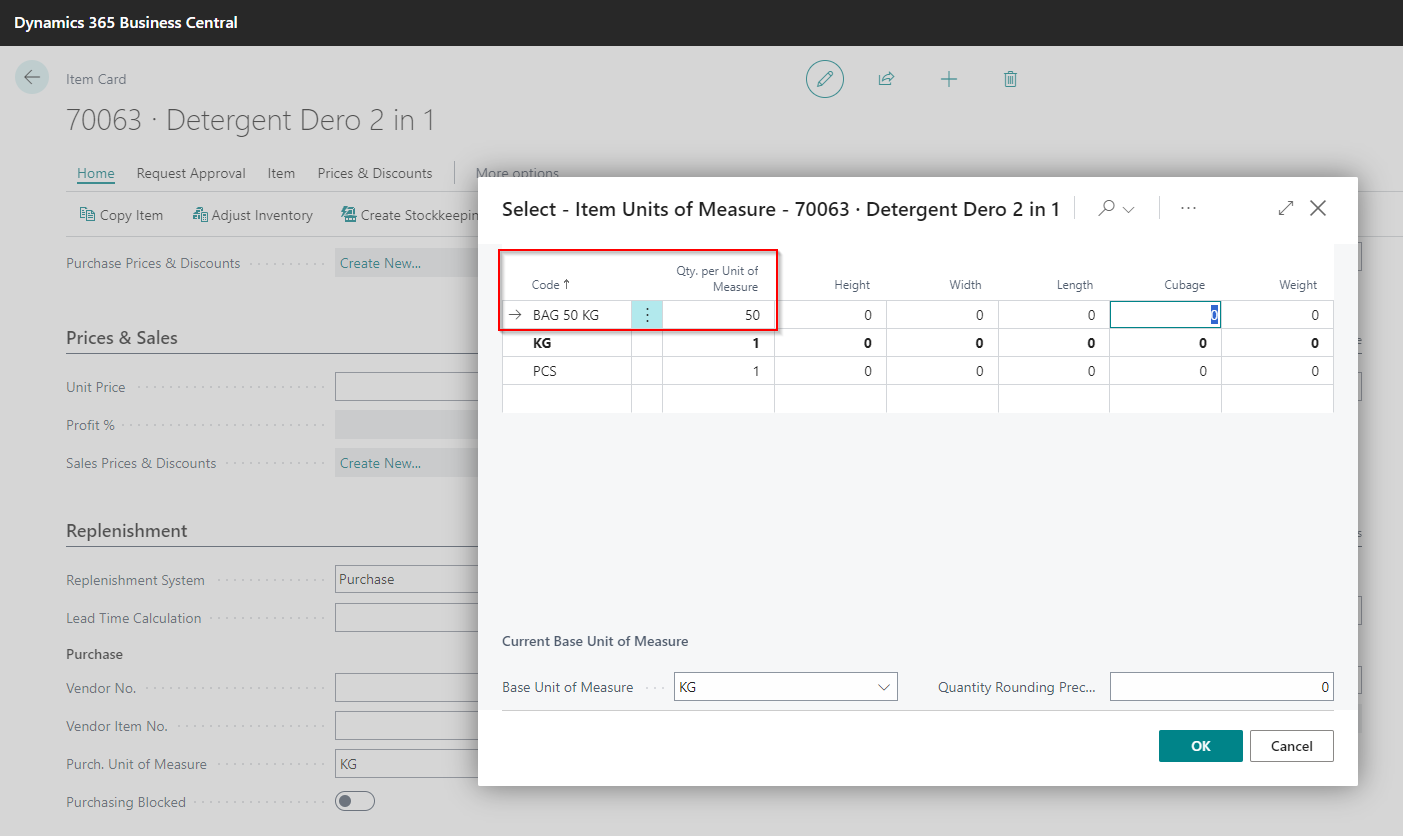
In the above example, we have established that for purchasing, we will use bags of 50 kg as the unit of measure. Similarly, you can allocate the sales unit of measure in the “Sales Unit of Measure” field, in the “Prices & Sales” section.
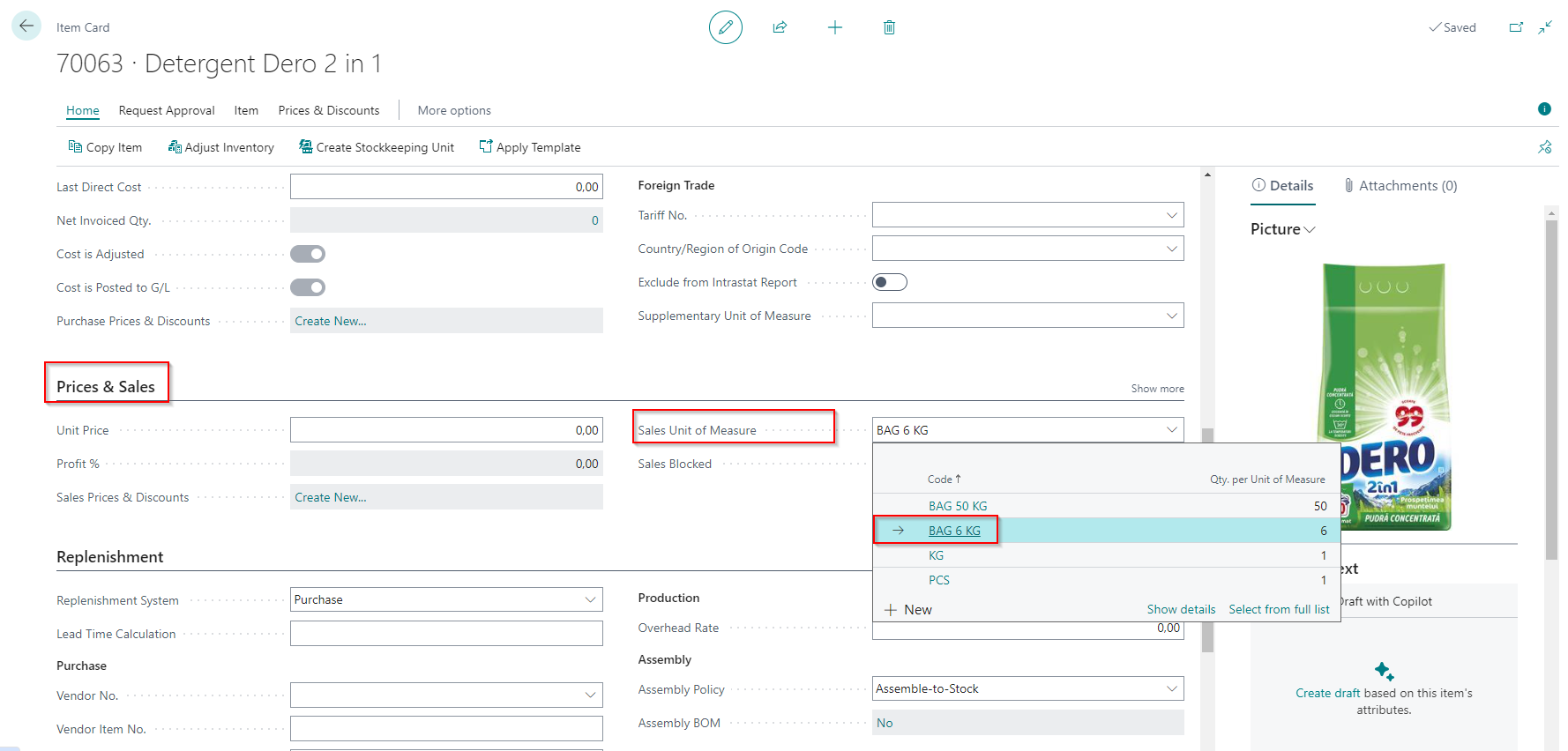
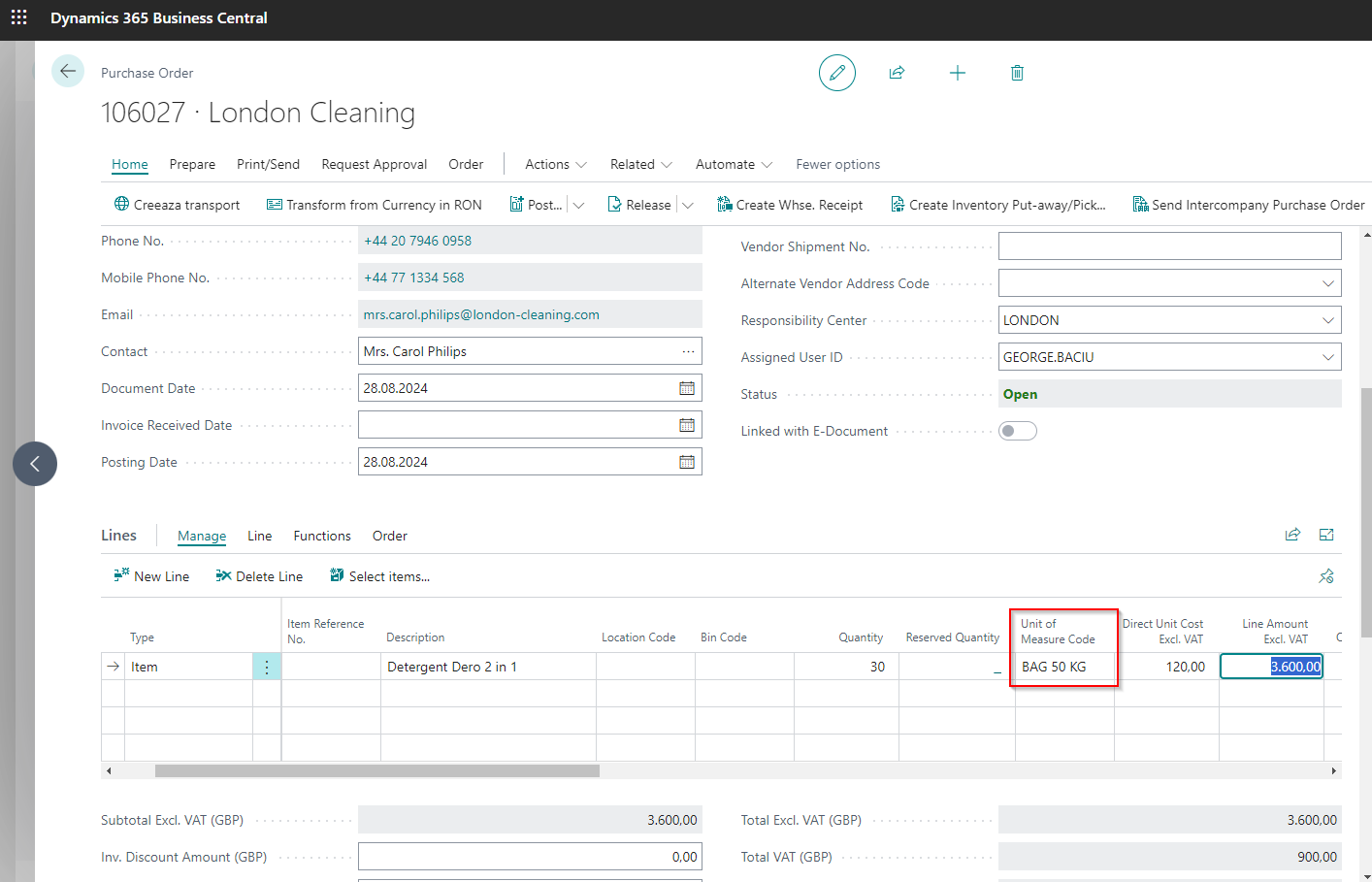
Once allocated, the units of measure will appear by default on purchase and sales documents. You can see in the image a purchase order where the item (for which we made the settings) was filled in, and the unit of measure is a 50 kg bag.
The purchase and sales units of measure are optional. If they are not used, the base unit of measure will be displayed by default on purchase and sales documents. However, the benefits of using dedicated units of measure for purchasing and selling are obvious.
Elian Solutions is part of the Bittnet Group, active for over 15 years as an implementer of the Microsoft Dynamics 365 Business Central ERP system. With a team of over 70 employees and a portfolio of over 250 clients, Elian Solutions is one of the key Microsoft partners for ERP systems.