Customer payments do not always match, to the penny, the invoices they are meant to settle: sometimes the two parties’ accounting systems round differently, sometimes it is simply a keying error. Either way, tiny amounts stay open on the statement and clutter your reporting.
Business Central answers this with a feature called “payment tolerance”: even when there is a small difference between payment and invoice, the documents can still be closed, and the difference goes to an income or an expense account. Here is how it is set up and used.
The first setting is made in the “General Ledger Setup” page, on the path Home->Change Payment Tolerance. The options window asks which currencies the tolerance applies to and the threshold at which it comes into play:
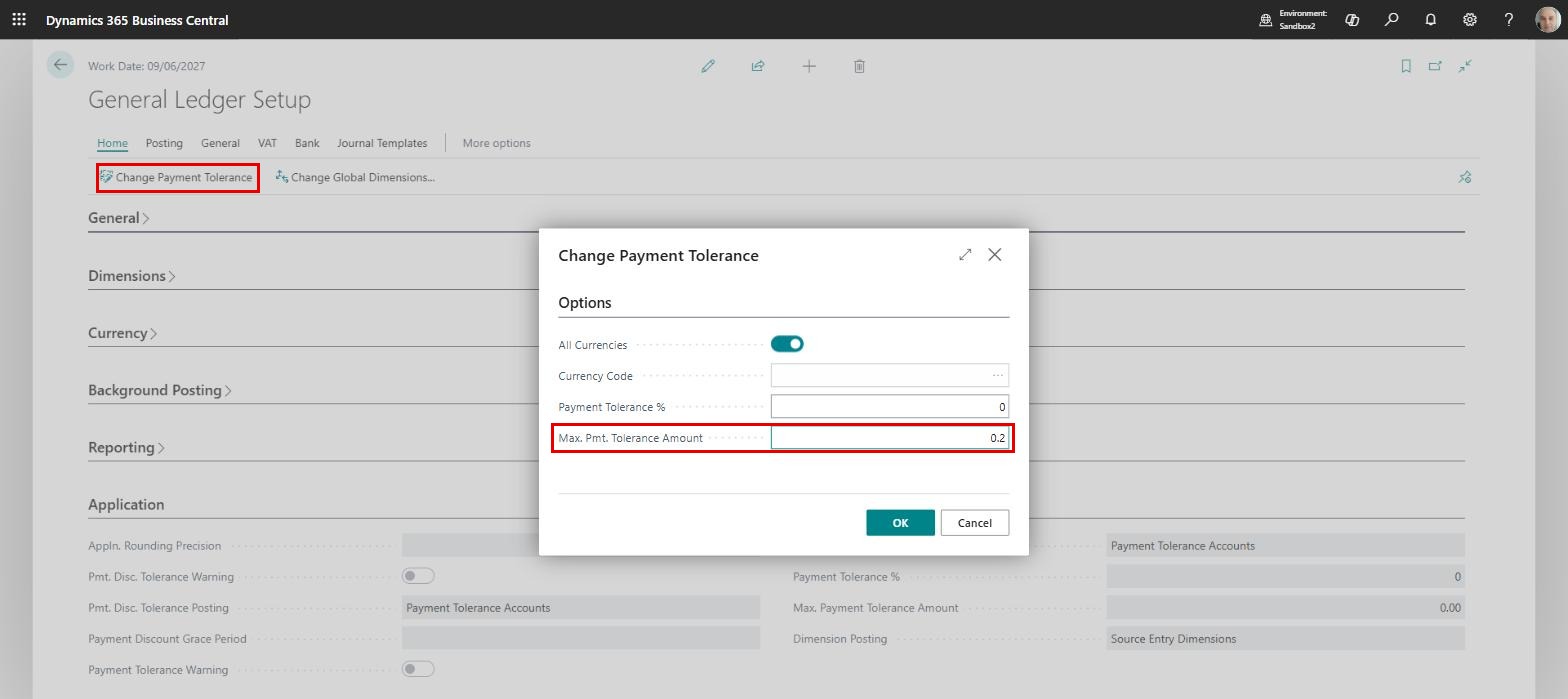
The threshold can be a percentage, in “Payment Tolerance %”, or an absolute amount, in “Max. Pmt. Tolerance Amount”. We recommend the second: above we set a ceiling of 0.20, so any smaller difference will close the documents.
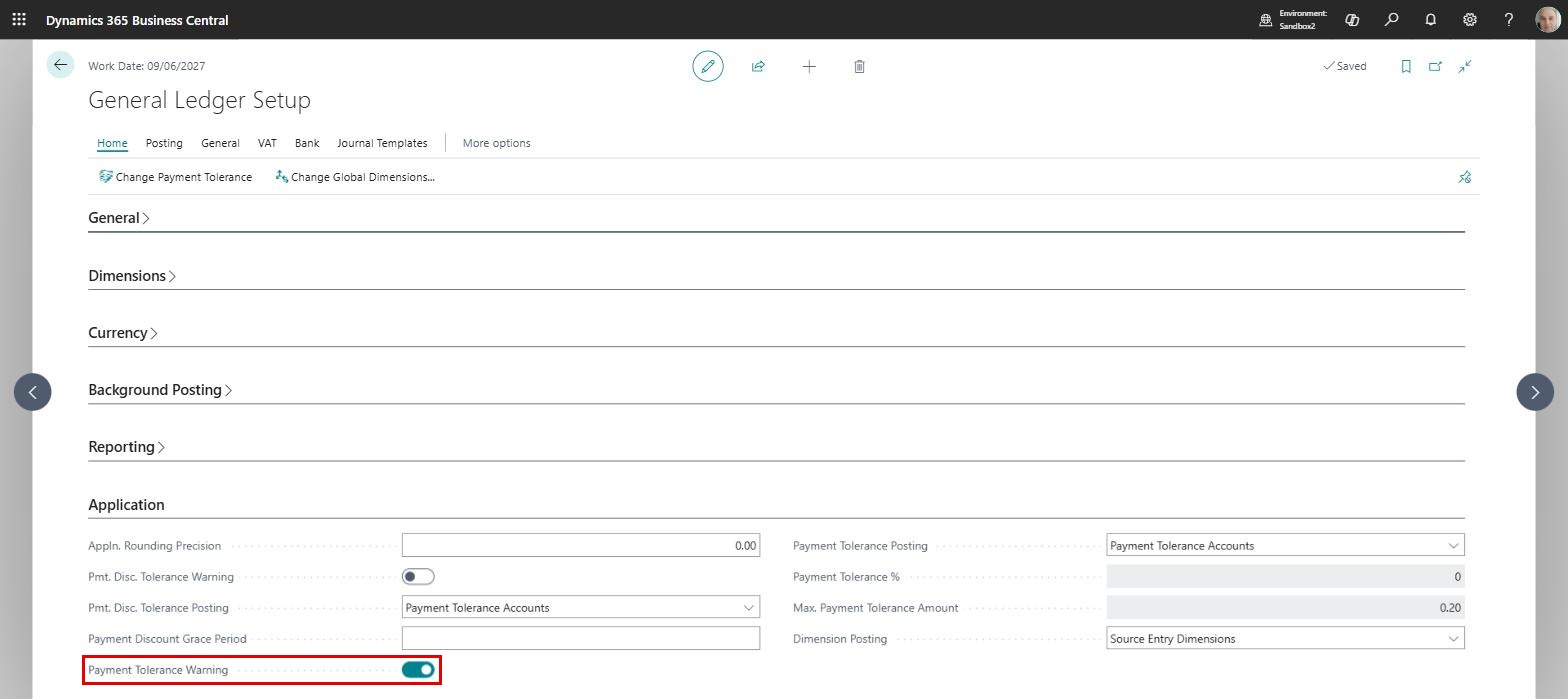
On the same page, on the “Application” FastTab, it is worth switching on “Payment Tolerance Warning”, which tells us every time the tolerance is about to be used:
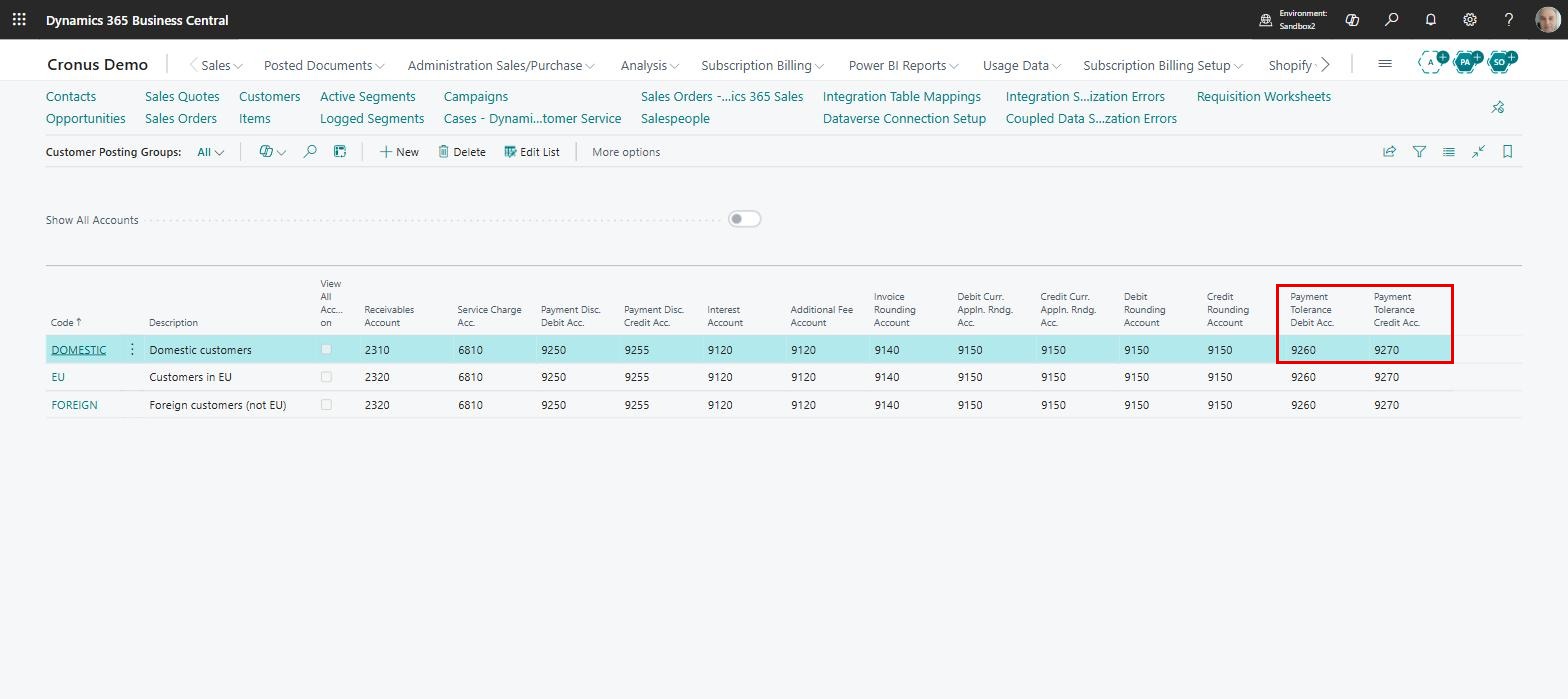
The second setup step is in “Customer Posting Groups”, where we fill in “Payment Tolerance Debit Acc.” and “Payment Tolerance Credit Acc.”. The differences between payment and invoice land on these accounts:
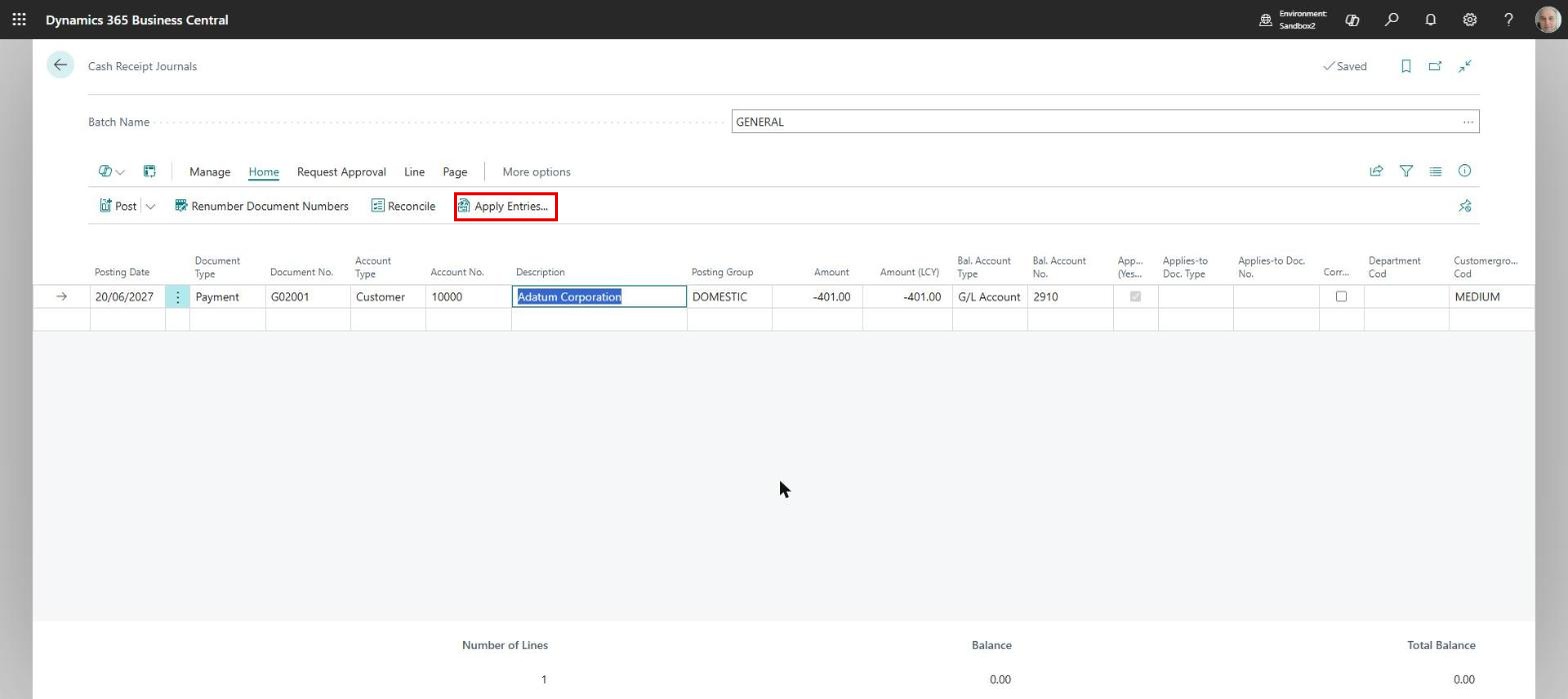
We can now test the setup with a receipt. We enter the payment in “Cash Receipt Journals” and link it to the invoice with the “Apply Entries…” button, a feature we described at length in the article: How to Track Invoice Payments in Business Central:
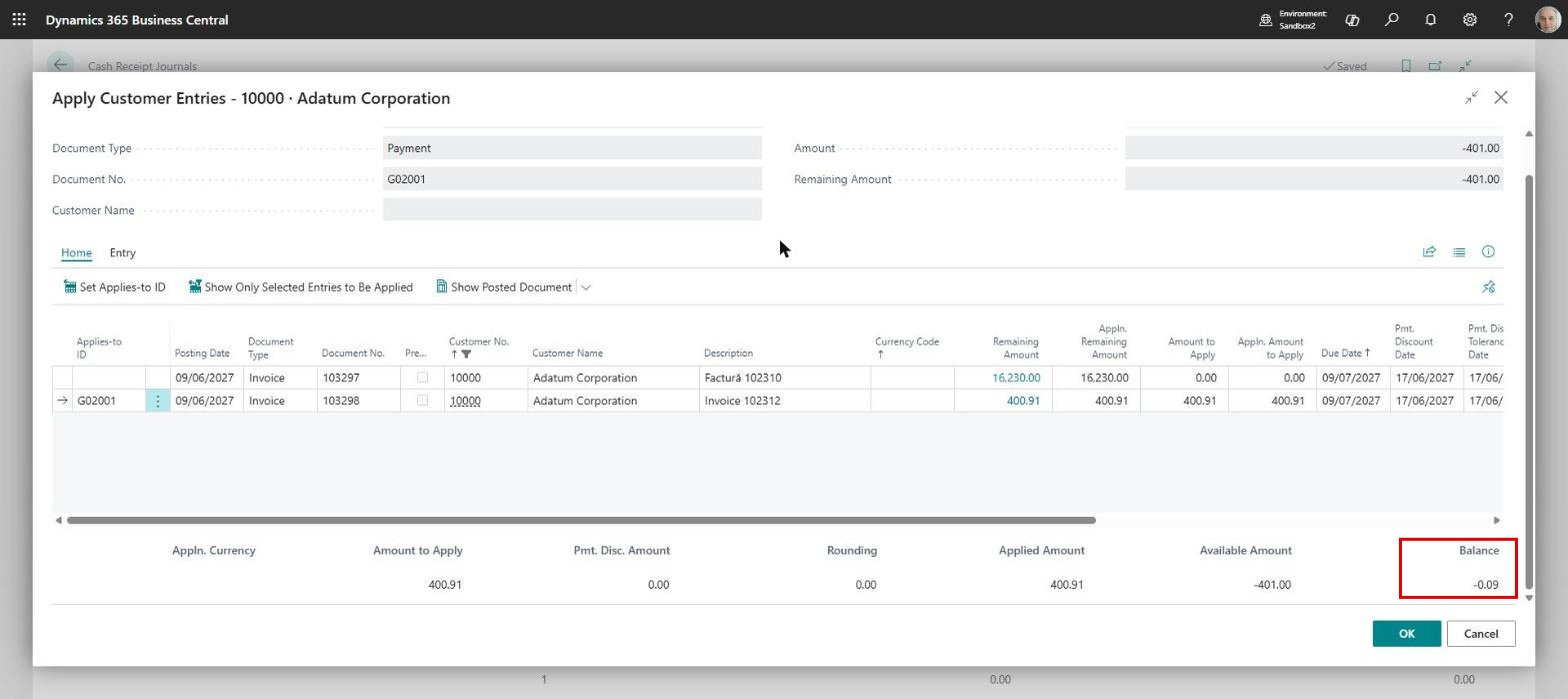
The list of the customer’s open documents appears, and we pick the invoice with “Set Applies-to ID”. Between the payment of 401.00 and the invoice of 400.91 a difference of 0.09 remains, shown in “Balance”:
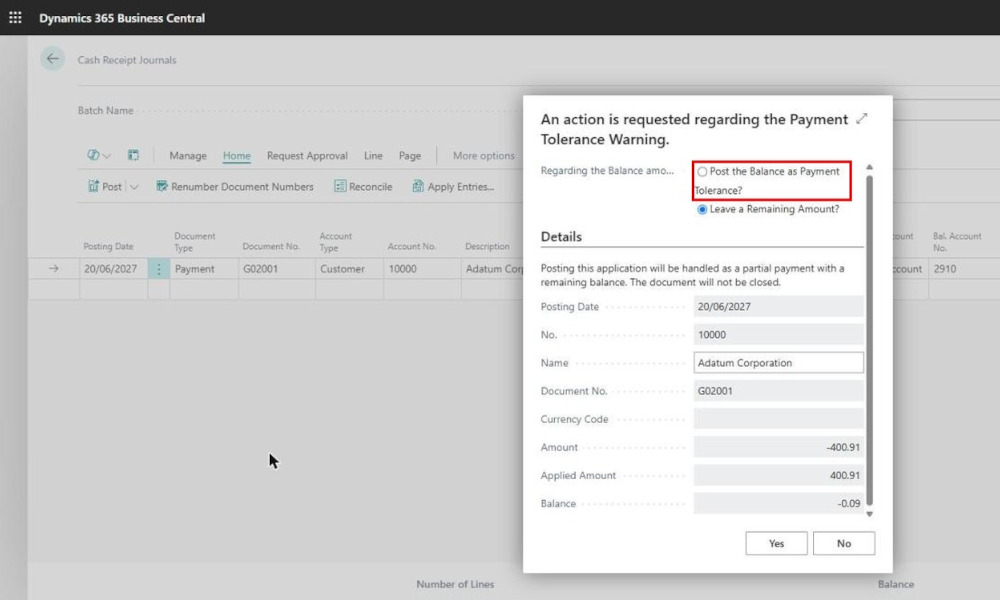
When the application page is closed, the warning appears: the 0.09 difference can be posted to the tolerance account and the two documents closed:
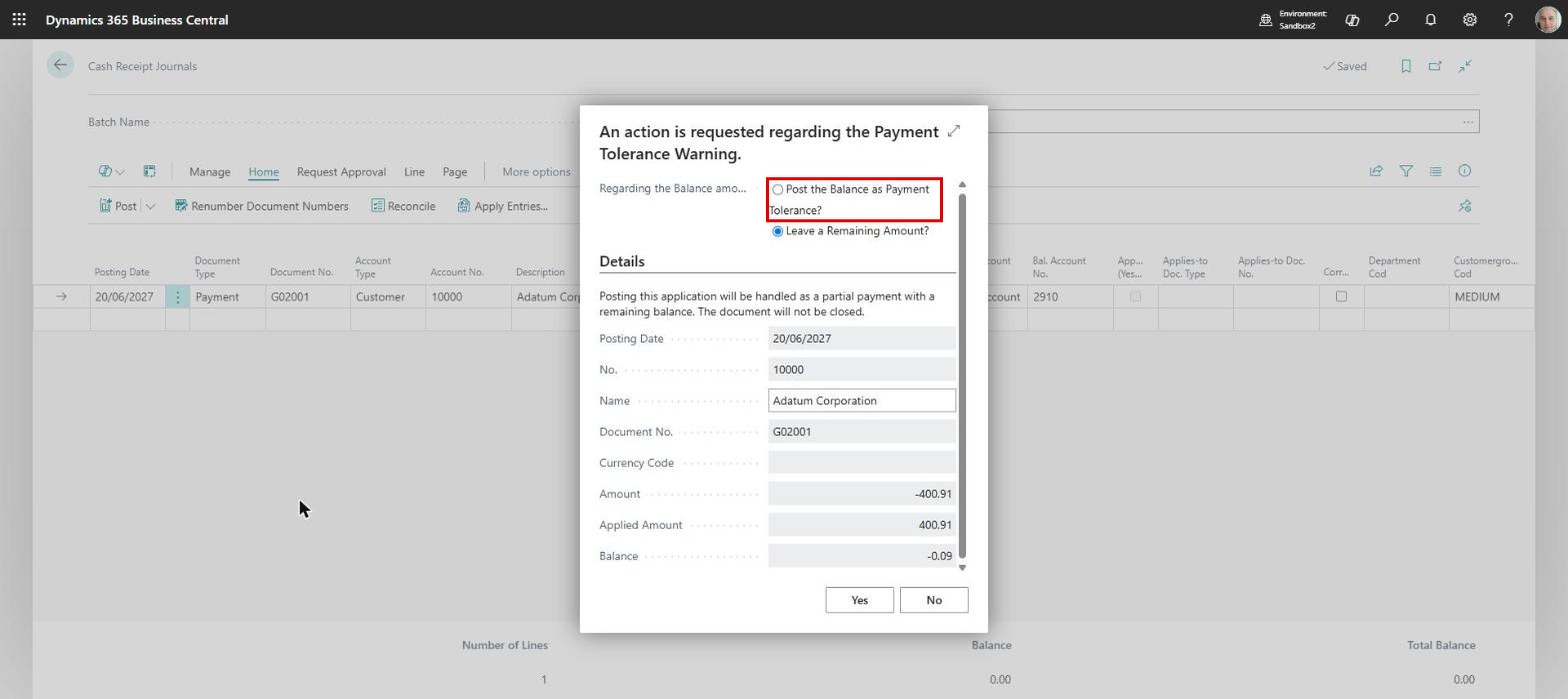
Be careful, though: the default option is “Leave a Remaining Amount?”, which means the invoice stays open with 0.09 on it. For the tolerance to be applied, you have to choose the first option yourself.
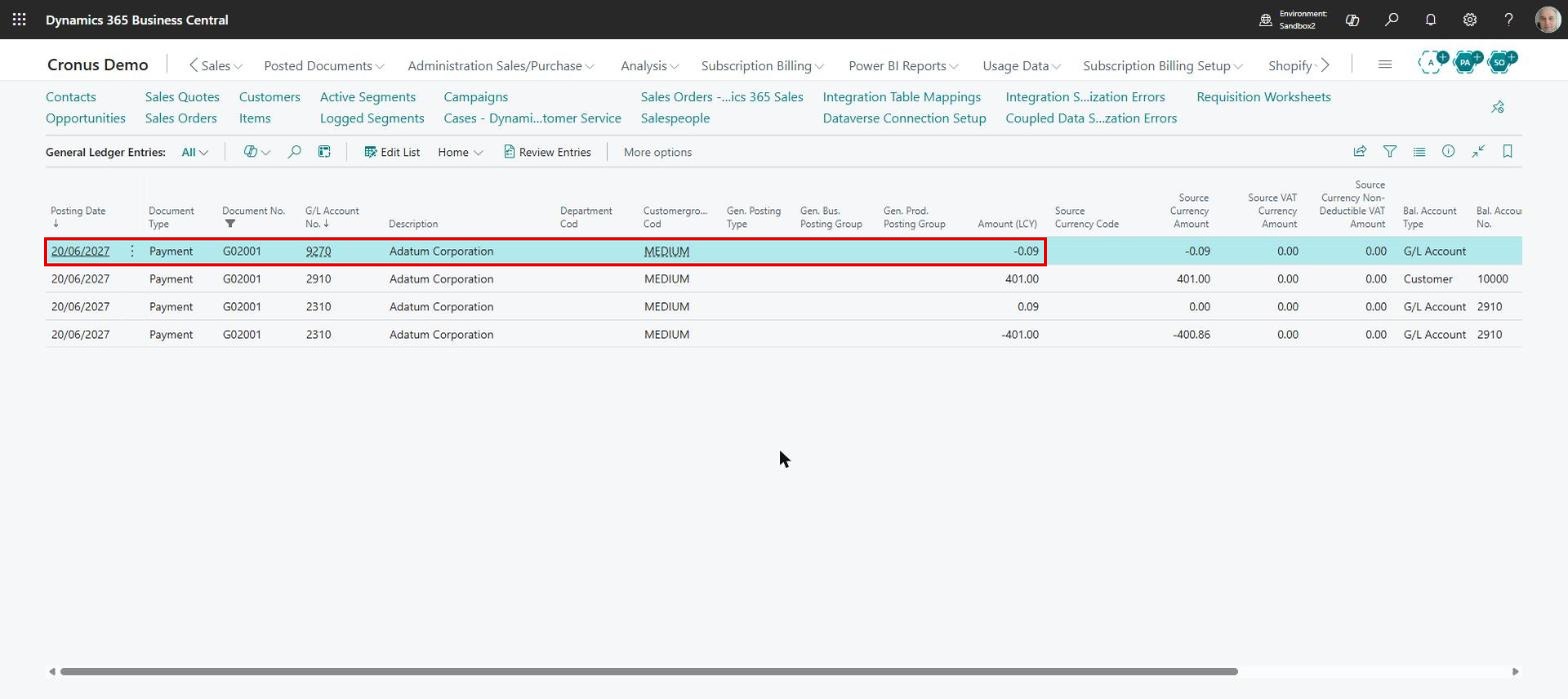
Once the journal is posted, “General Ledger Entries” shows the receipt, and the difference appears on the tolerance account set on the customer’s posting group:
We recommend leaving the warning switched on for a while, until you are satisfied that the feature behaves as expected, and only then turning it off. Set the ceiling carefully: too small and it solves nothing, too large and it leaves room for losses nobody notices any more.
ELIAN Solutions has been active since 2008 as an implementer of Microsoft Dynamics 365 Business Central . With a team of over 80 specialists and a portfolio of more than 400 clients, ELIAN Solutions is one of the leading ERP partners.