Companies that need to perform management accounting — for example, by tracking expenses and revenues by product, department, employee, project, and so on — can use dimensions in Business Central. Dimensions are categories of information that can be assigned to transactions posted in the system. They enable companies to analyse expenses and revenues in greater detail according to their specific business needs. For example, dimensions can be used to represent cost centres, departments, projects, regions, sales channels, or other areas that a company wants to analyse.
n this article, we will show how dimensions are assigned to transactions in documents and journals. If you would like to learn more about setting up dimensions, see our article, How to Set Up Dimensions in Business Central.
Working with Dimensions in Documents
Documents in Business Central are user interfaces that represent the business documents used in a company’s transactions, such as orders, invoices and quotes. They typically consist of two main areas: the header and the lines.
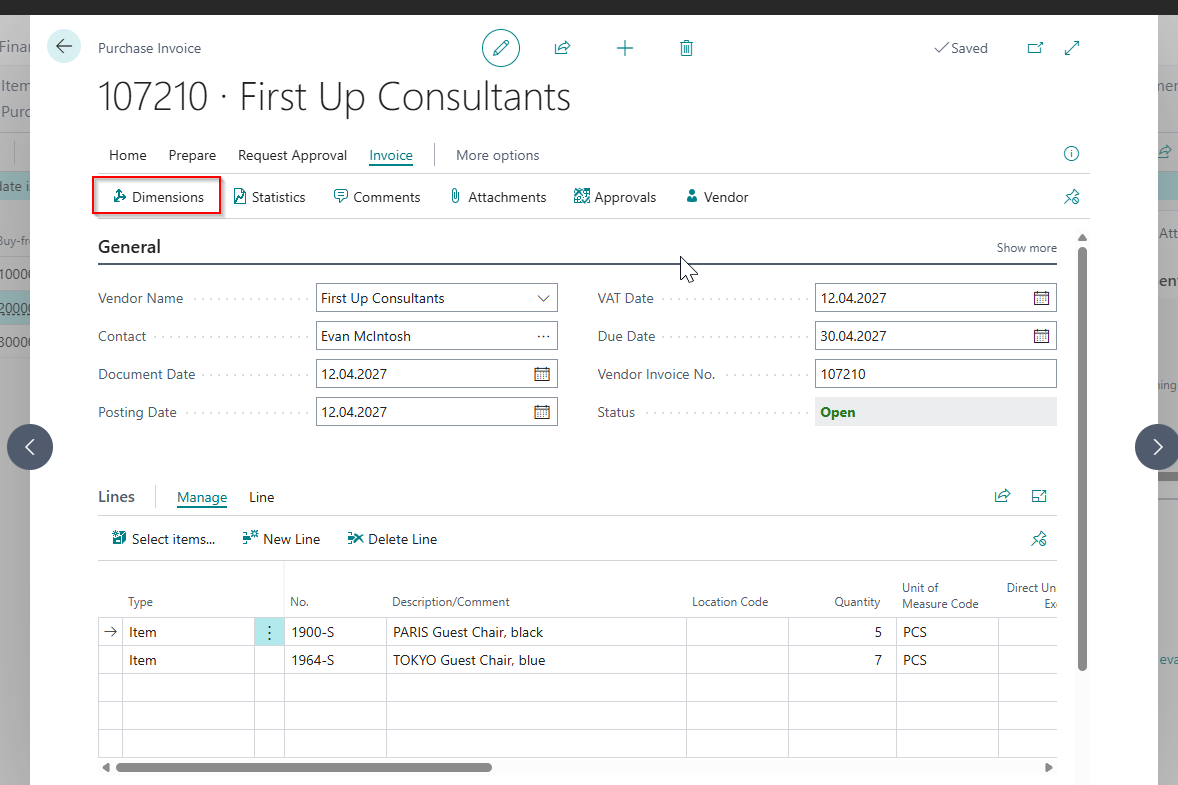
In the header, we can find information that applies to the entire document, such as the customer or vendor, date, document number, and so on. In the lines, we can find information relating to the products or services included in the transaction. In the header, we enter dimensions that we generally want to apply to the entire document. In the example below, we have a purchase invoice. To assign a dimension to it, first select Invoice > Dimensions.
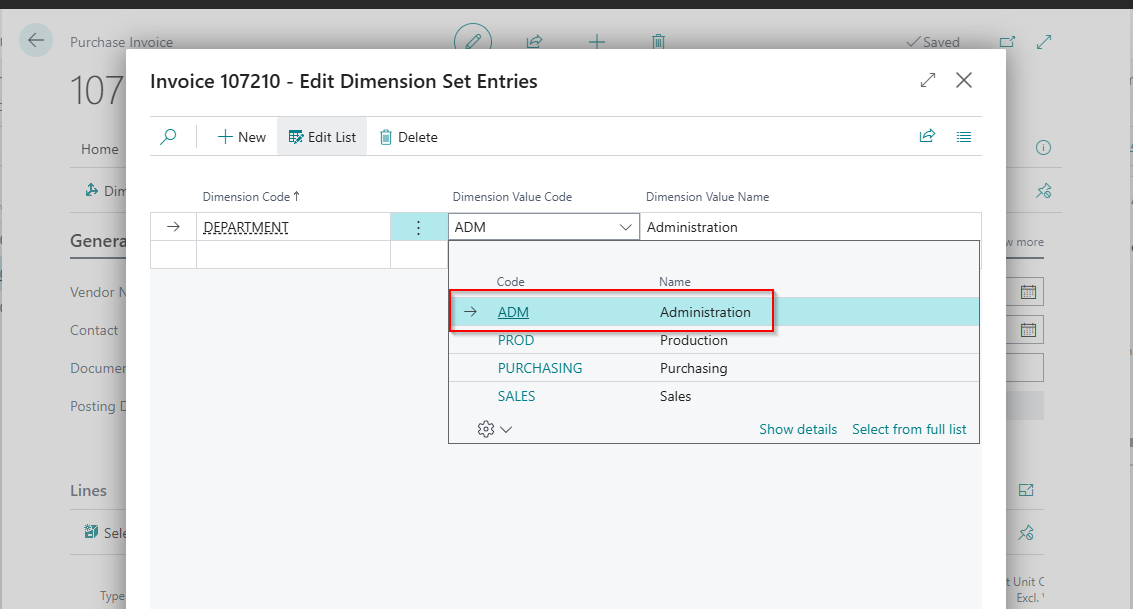
The Dimensions page will open, where we can select the dimension and its value. In our example, we want the expenses associated with the purchase invoice to be assigned to the ADMINISTRATION department.
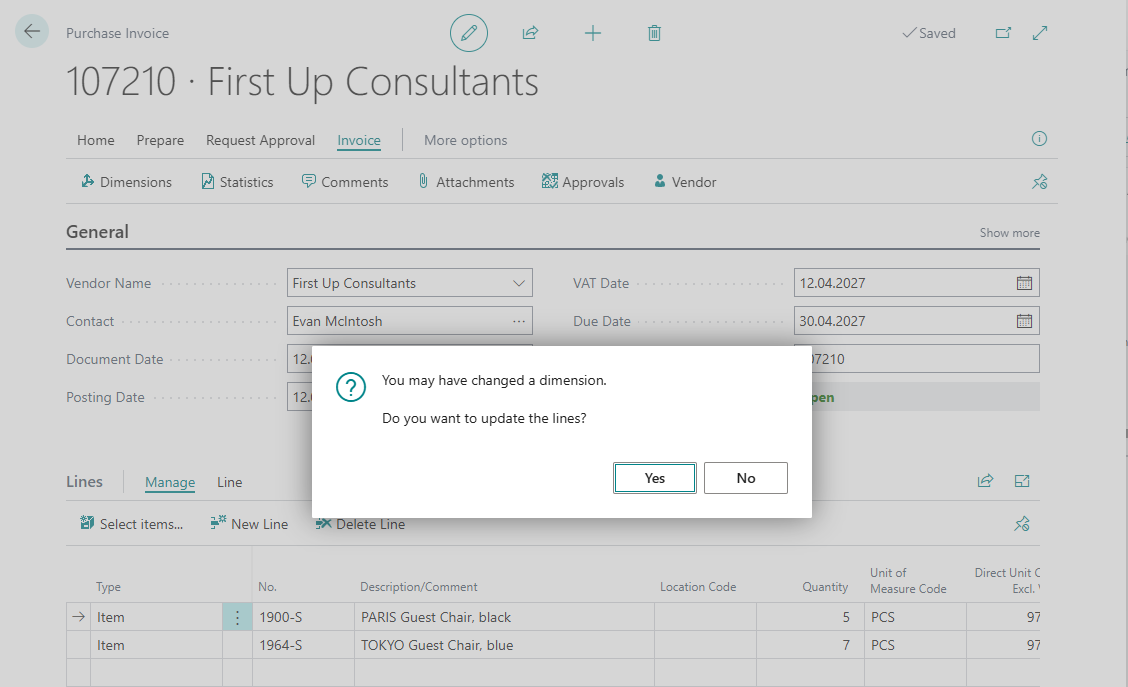
When we assign a dimension in the header and close the Dimensions page, a warning message appears. It informs us that changes made to the dimensions in the header will also update the dimensions on the lines. If you have not yet entered any information on the lines, you do not need to worry about this message. However, if you have already assigned a different department dimension value to a line, assigning a dimension in the header may overwrite the value on that line.
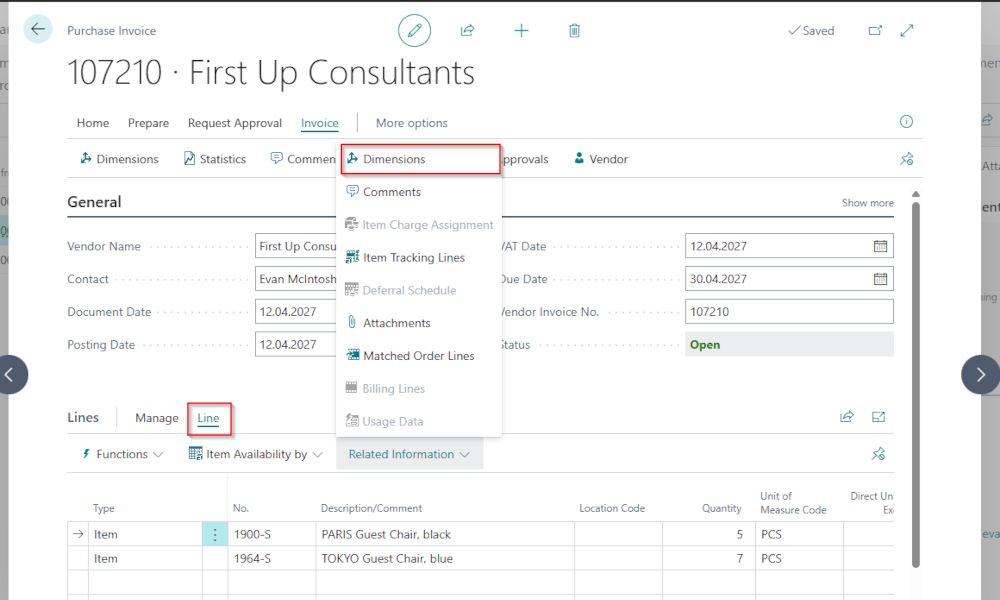
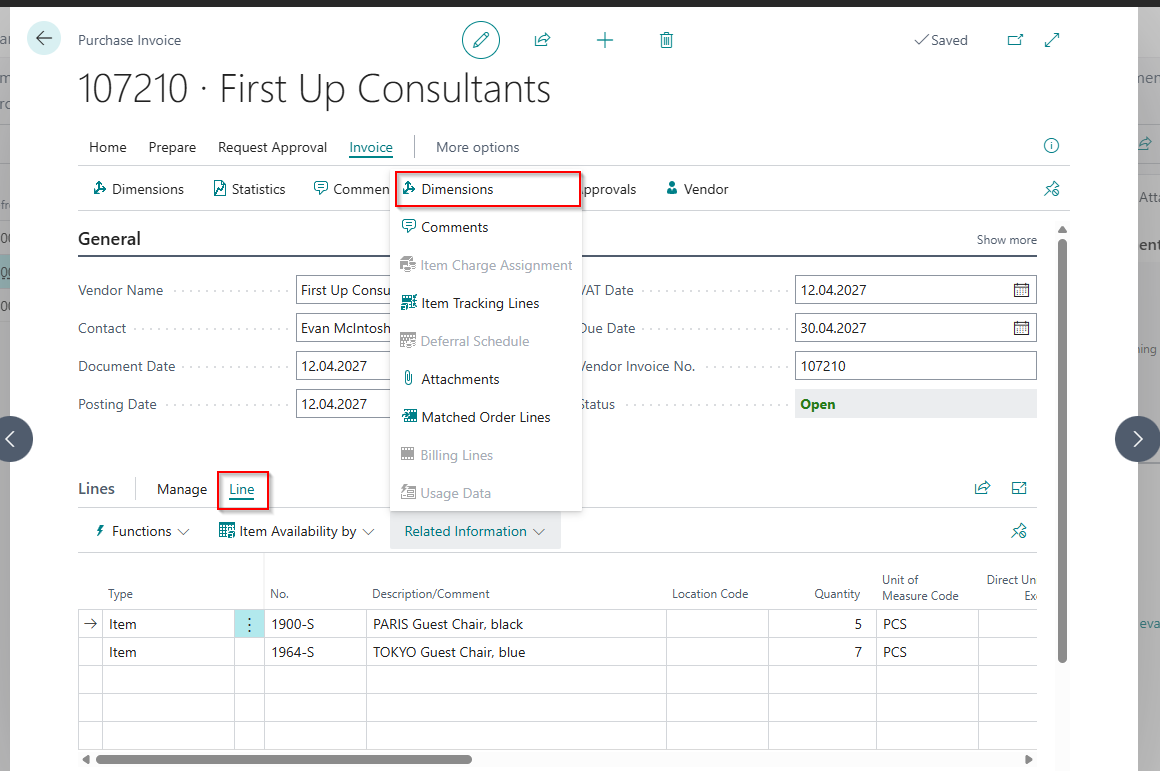
Dimensions can also be assigned directly to an invoice line by selecting Line > Related Information > Dimensions
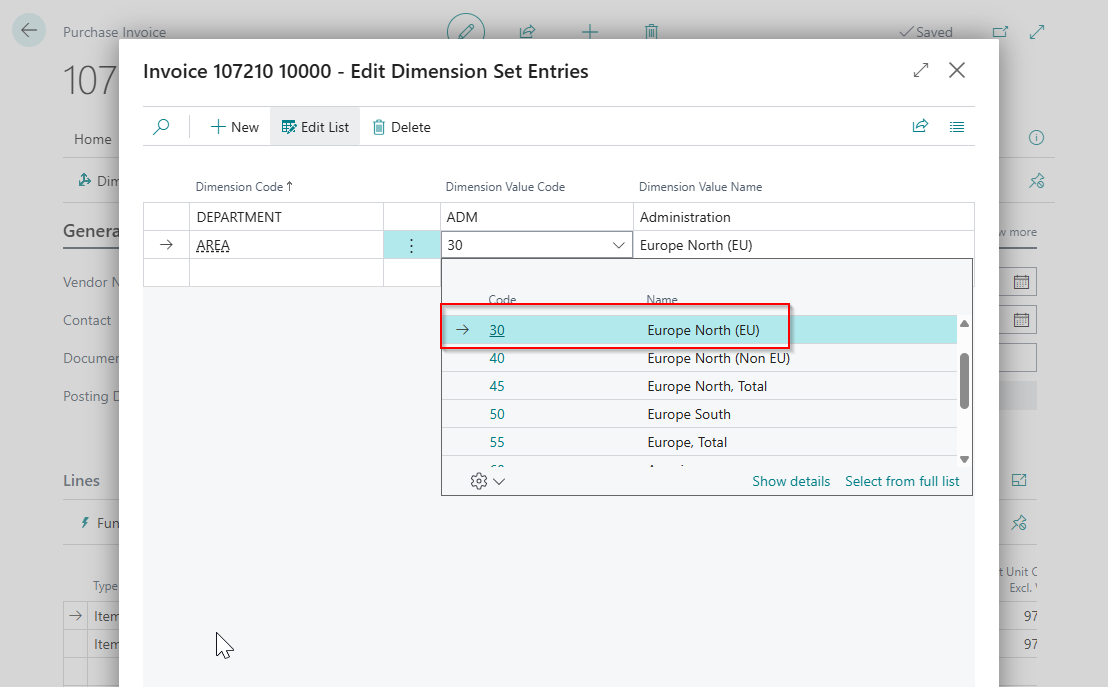
Dimensions page is the same as in the header, in the example we have selected a line for AREA dimension.
Working with Dimensions in Journals
Working with dimensions in journals is even easier and is similar to assigning dimensions to invoice lines.
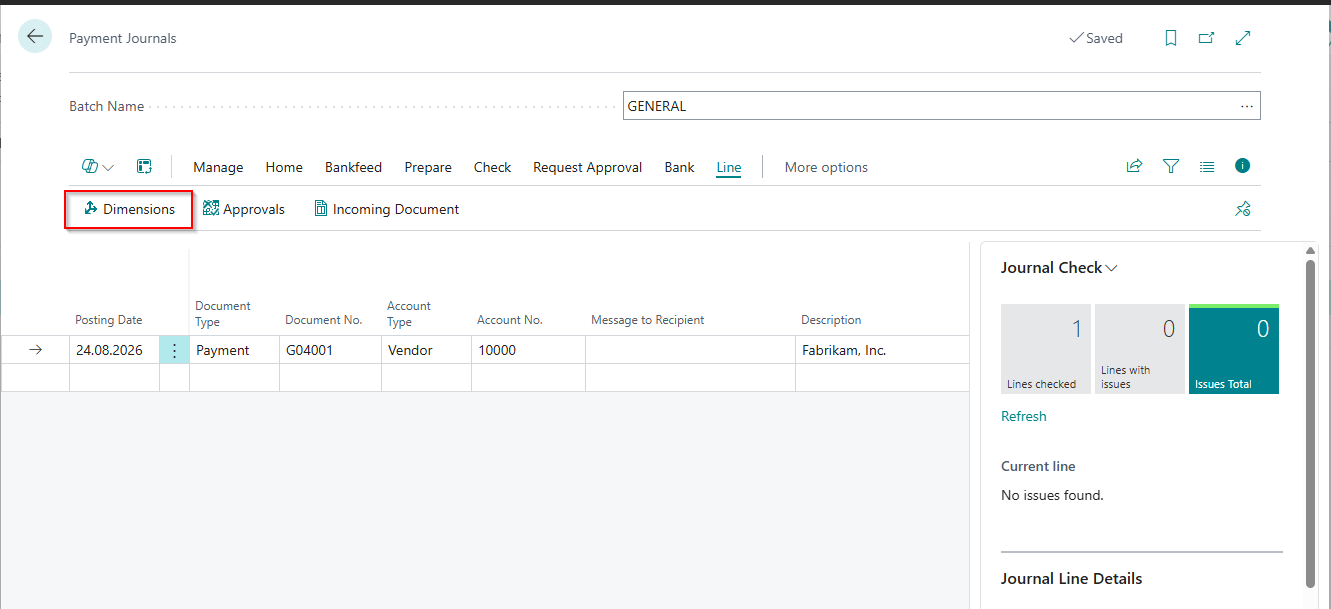
A single journal line can have an unlimited number of dimensions assigned to it, although in practice four or five dimensions are usually sufficient.
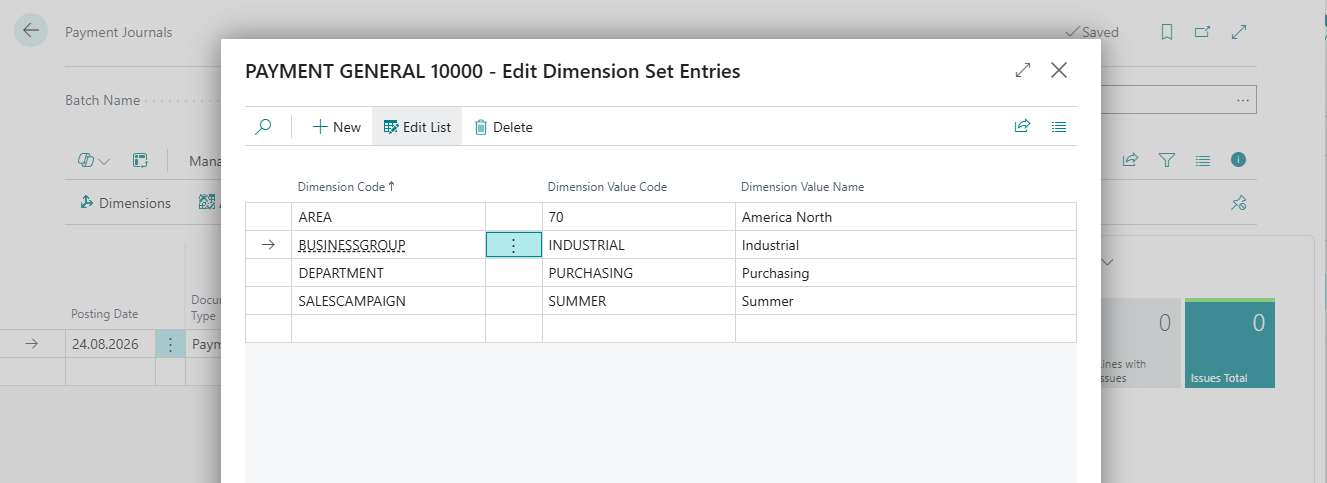
Dimensions can be assigned to all types of documents and journals available in Business Central, except for those in the Warehouse module. However, wherever possible, we recommend setting up default dimensions for system entities such as G/L accounts, customers, vendors, items and projects. This allows dimensions to be assigned automatically when transactions are entered.
If you would like to learn how to set up default dimensions, see our article, How to Set Up Dimensions on G/L Accounts in Business Central.
In a future article, we will explore the features available for analyzing transactions by dimensions.
ELIAN Solutions has been active since 2008 as an implementer of Microsoft Dynamics 365 Business Central . With a team of over 80 specialists and a portfolio of more than 400 clients, ELIAN Solutions is one of the leading ERP partners.