In any company’s sales process it is fairly common to deal with customers who pay late, or whose creditworthiness is not yet fully established, which can create cash-flow problems. The risk grows in proportion to transaction volumes.
Dynamics 365 Business Central warns the user at the very moment a sales document is being created, when the customer has invoices past their due date or when they exceed a given commercial credit ceiling. In what follows we will show how these warnings are switched on and how they look in practice.
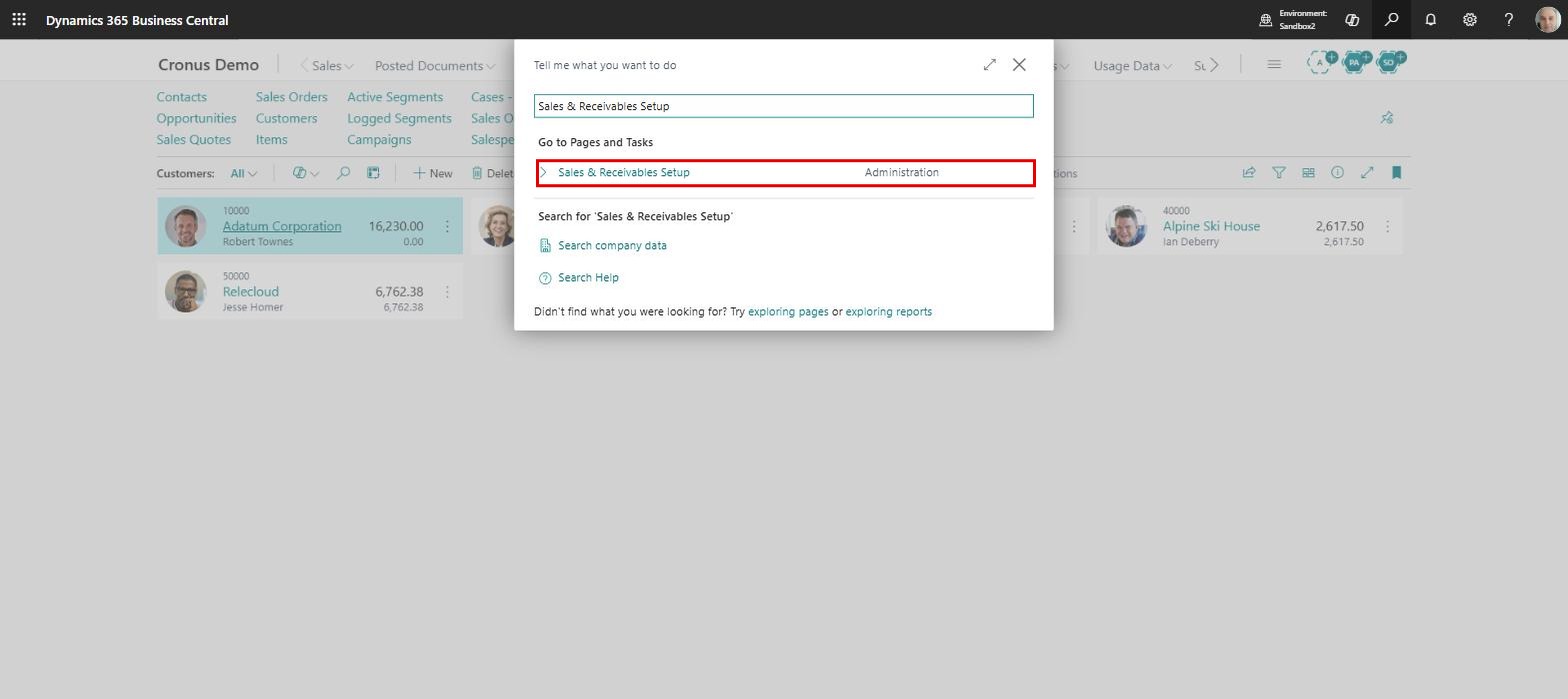
The warnings are enabled in a single place, on the “Sales & Receivables Setup” page, which is most easily reached using the search function:
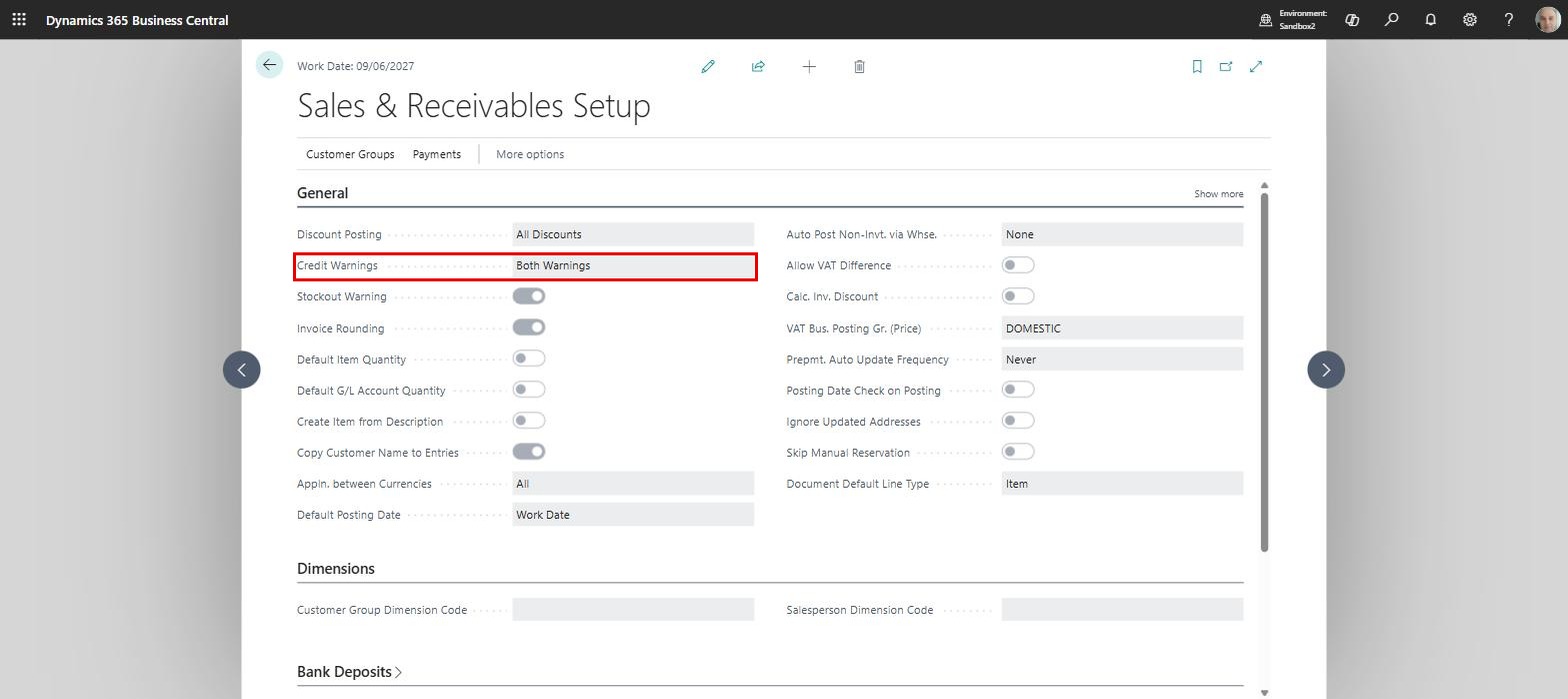
On the “General” FastTab there is a “Credit Warnings” field with four options: “No Warning”, “Overdue Balance”, “Credit Limit” and “Both Warnings”. We will choose “Both Warnings”, so that the overdue balance warning and the credit limit warning are both active:
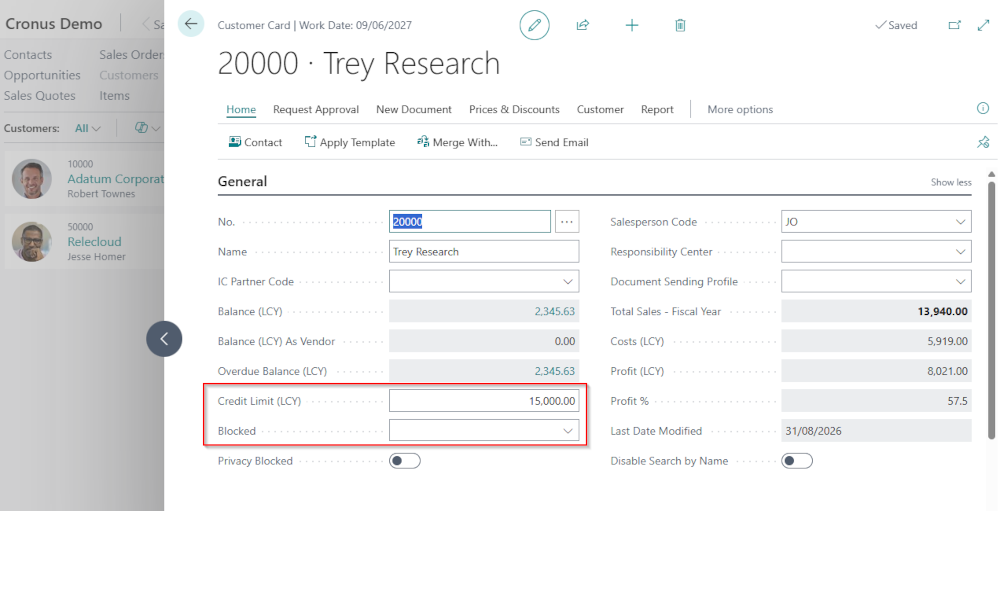
The credit limit itself is set on each customer, on the customer card, and represents the maximum commercial exposure accepted for that customer. For the customer in our example we have set a limit of 15,000, and the “Overdue Balance (LCY)” field shows that they already have an outstanding receivable of 2,345.63:
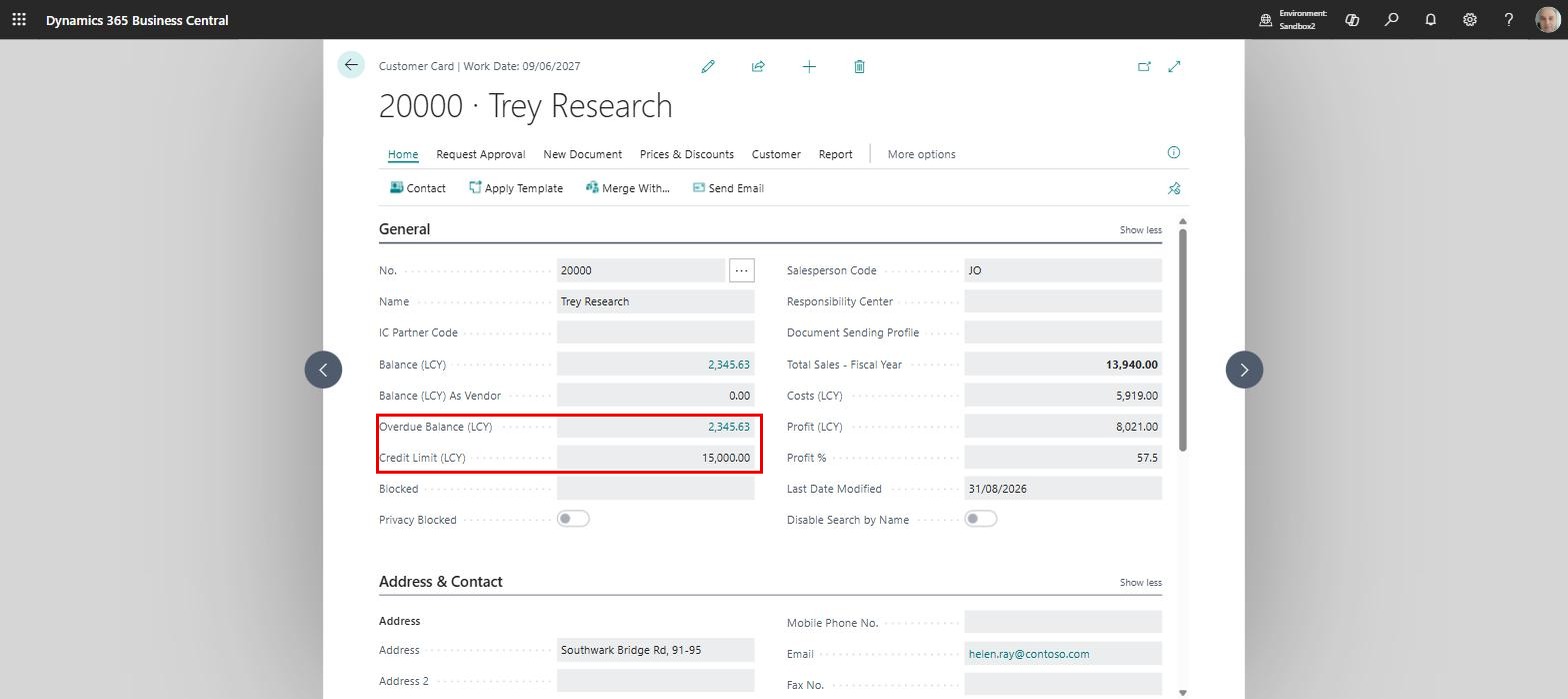
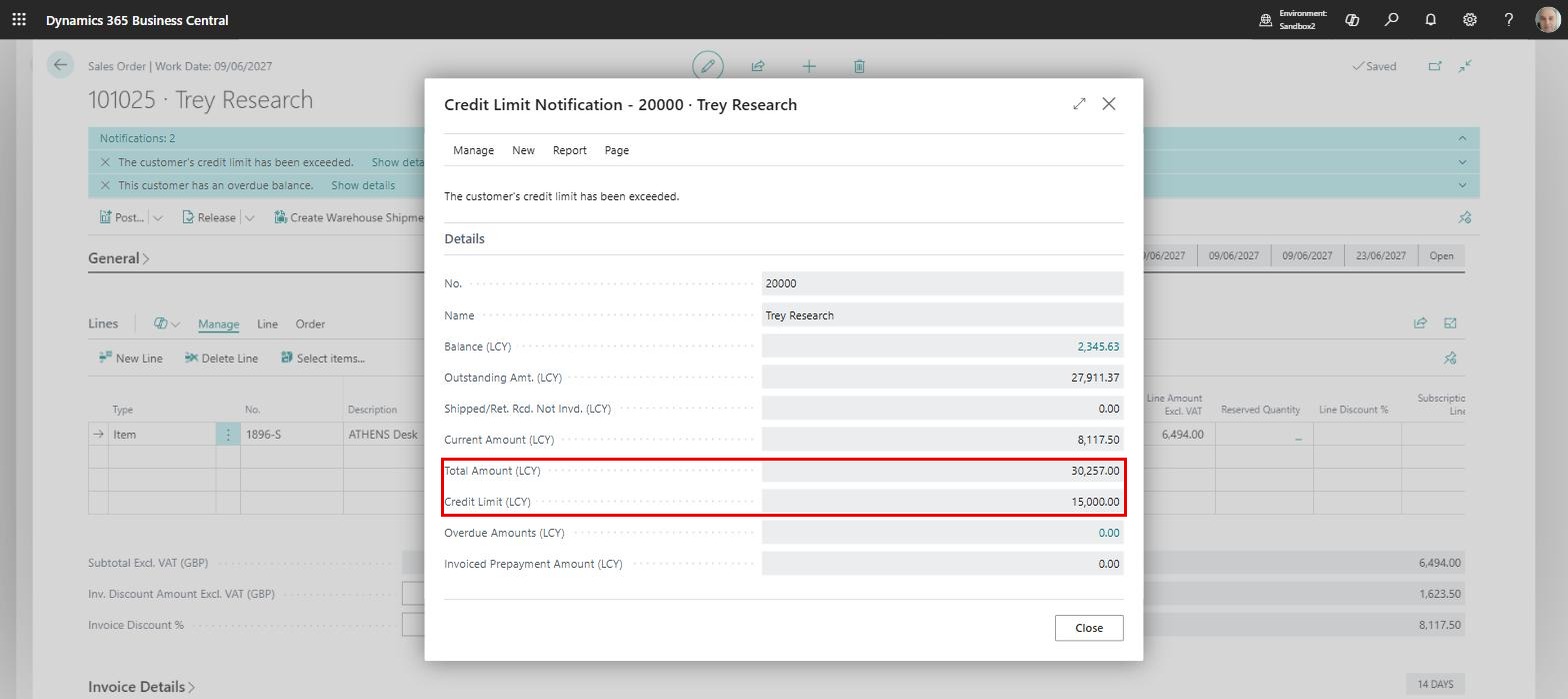
The overdue balance warning appears when a new sales document is created for a customer who has unpaid invoices whose payment term has passed. The credit limit warning appears when the value of the current document, added to the customer’s balance and to their ongoing orders, goes beyond the ceiling set on the card.
In the sales order below both conditions are met, so Business Central displays two notifications in the document header:
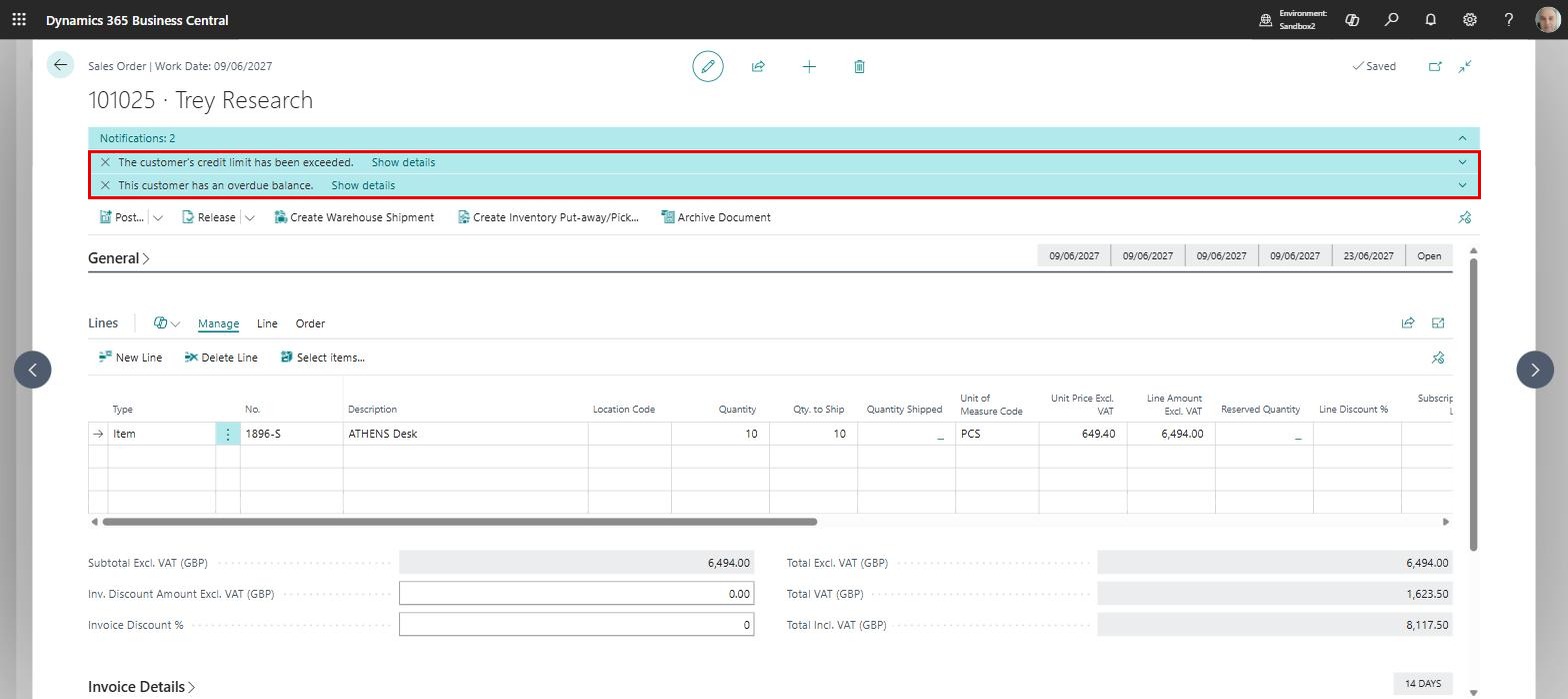
The notification itself is short, but the “Show details” link opens the “Credit Limit Notification” page, where we can see how the limit came to be exceeded: the balance, the ongoing orders, the value of the current document and the credit limit:
It is worth noting that these are only warnings: they block neither saving nor releasing the document. If you need a more restrictive policy, with value thresholds imposed per user, the right tool is approval workflows, which in Business Central can now be built either with the standard approval workflows or with flows in Power Automate (we will cover both approaches in future articles).
We recommend filling in the credit limit on customer cards right from the moment they are opened, and leaving the setup on “Both Warnings”. It is a configuration that costs you nothing, but gives the sales team a visible signal before the document is released, reducing the risk of overdue balances growing unnoticed.
ELIAN Solutions has been active since 2008 as an implementer of Microsoft Dynamics 365 Business Central . With a team of over 80 specialists and a portfolio of more than 400 clients, ELIAN Solutions is one of the leading ERP partners.