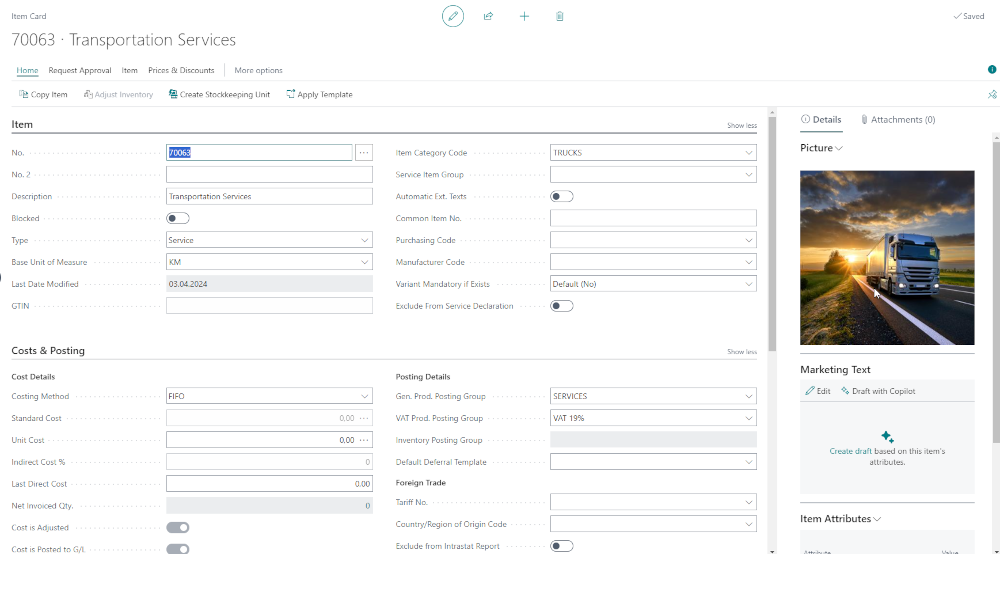
Companies that sell items need to provide buyers with various information regarding item features, such as dimensions, length, colour, brand, etc. This information varies depending on the type of item and, although it is important in the sales process, it does not justify storing it in separate fields on the item card; there is too much information, what is relevant for one item category may not be relevant for another, and it would certainly affect the database’s performance.
An elegant solution is to define these features outside the item master data and associate them selectively, only for the items that need them. In fact, this is the standard way of solving the problem in Dynamics 365 Business Central, by using attributes and categories.
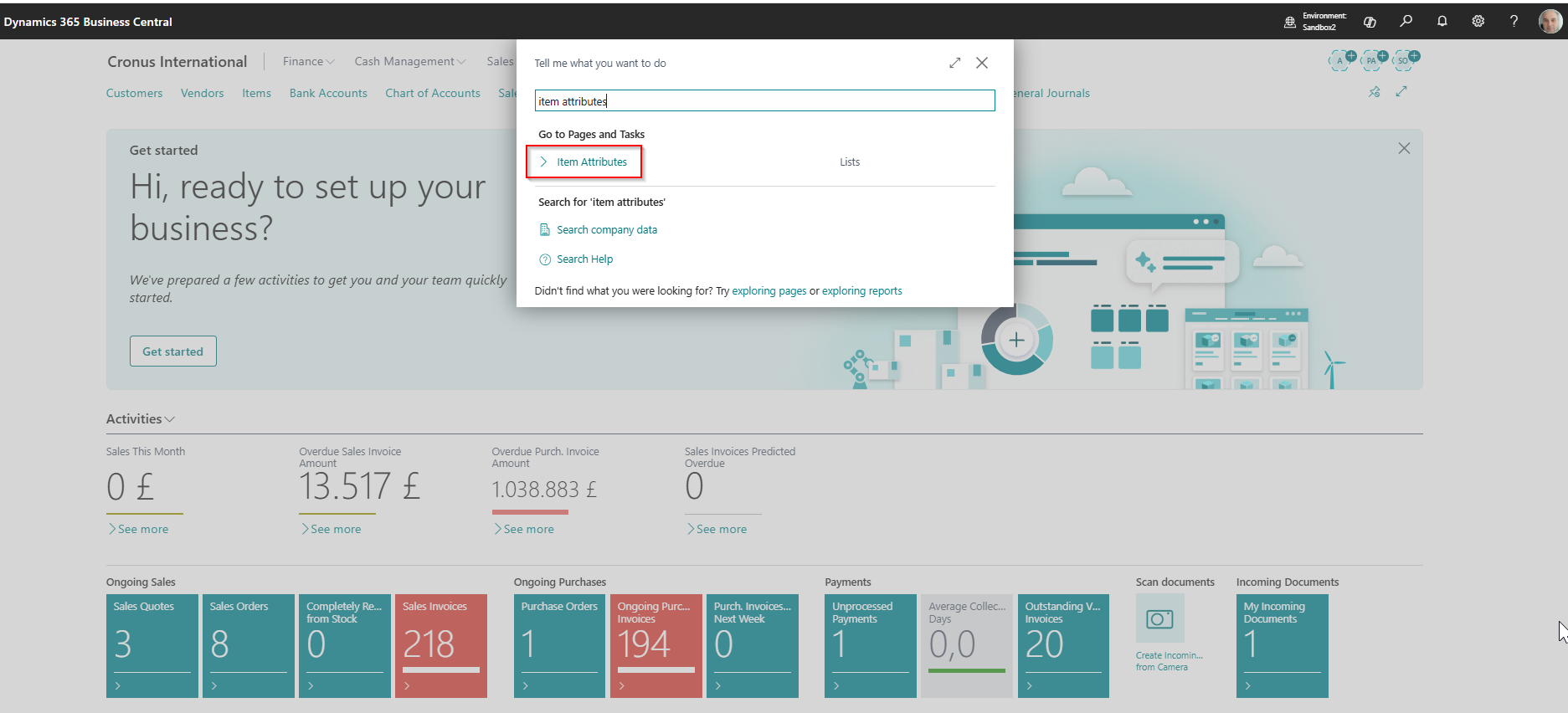
First, we must define attributes in Business Central. In order to do that, we have to access the page called “Item Attributes”. It can be found using the search function:
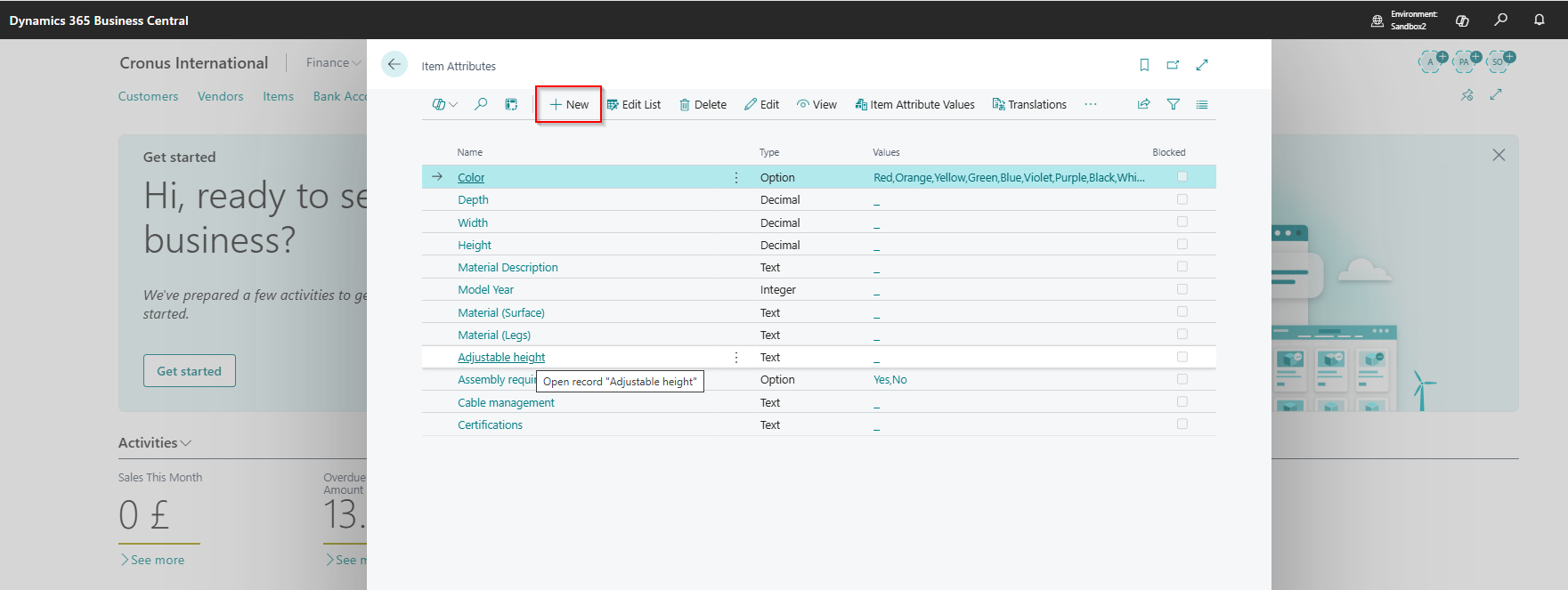
The list of item attributes will open, and if we want to define a new item attribute, we need to click the “New” button, and an empty item attribute card will be created.
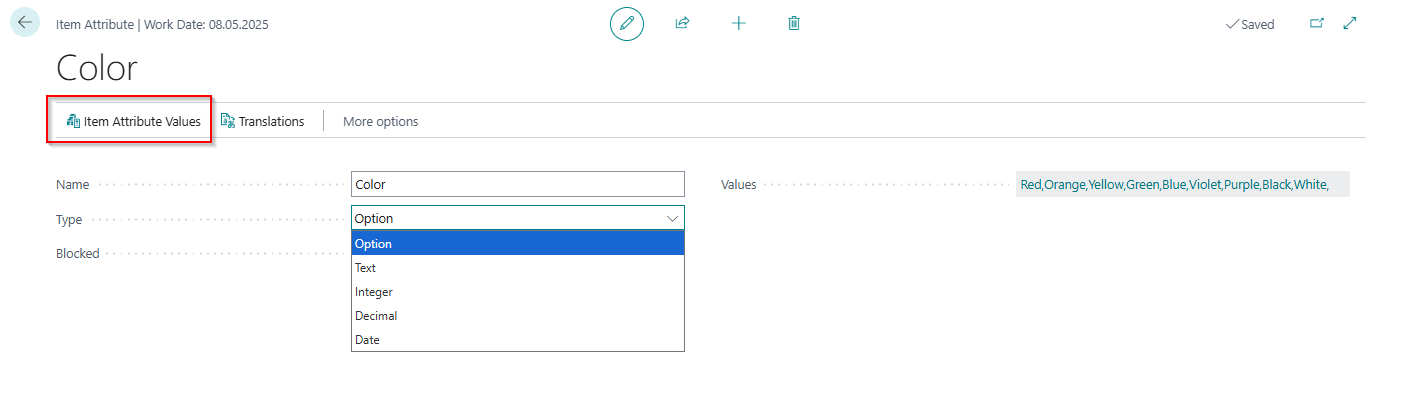
In the item attribute card, we fill in the name and the type of the attribute (Option, Text, Integer, Decimal). In the image below, we have the “Colour” attribute with the Option type—this means we have to assign a value to the attribute using a list of possible values.
After we have defined item attributes, we can associate them with items, but a better solution is to define item categories and associate item attributes with the categories, especially when we have many items. Categories are item groupings that help with sorting and filtering. The main advantage of relating item attributes to the category level rather than the item level is easier maintenance. If we want to change some attributes, we can update them for several categories instead of updating thousands or tens of thousands of items.
To define categories, we access the “Item Categories” page, and the process of creating categories is similar to creating attributes.
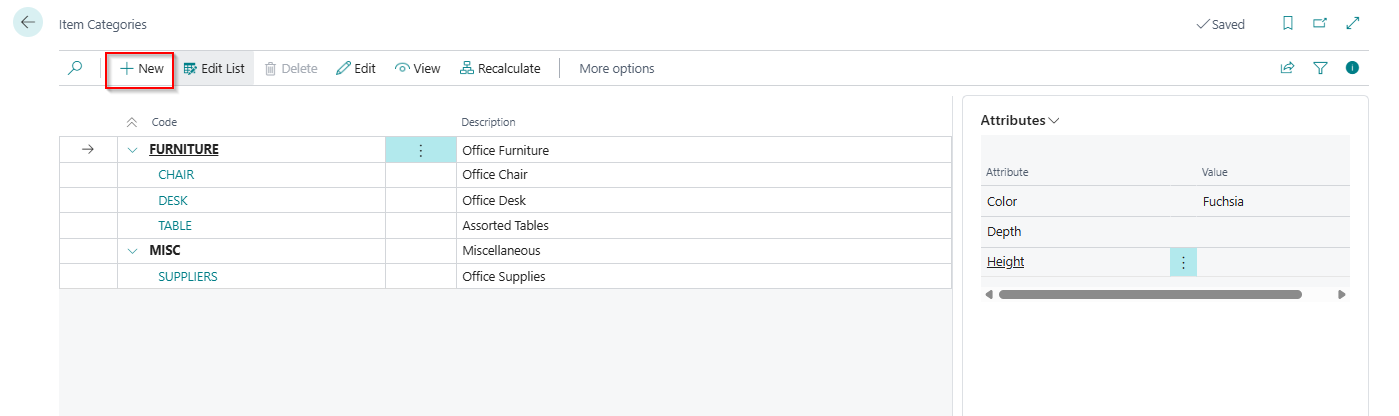
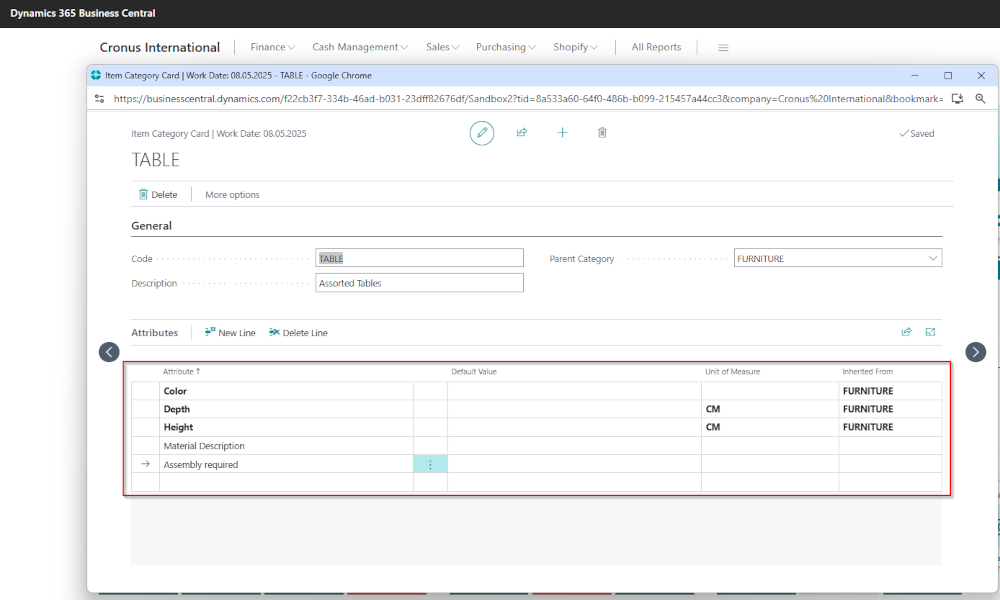
In the header of the category card, we set up a code and a description of the category, and we can select a parent category, which allows us to create a hierarchical structure. On the lines of the category card, we can select attributes that were previously defined.
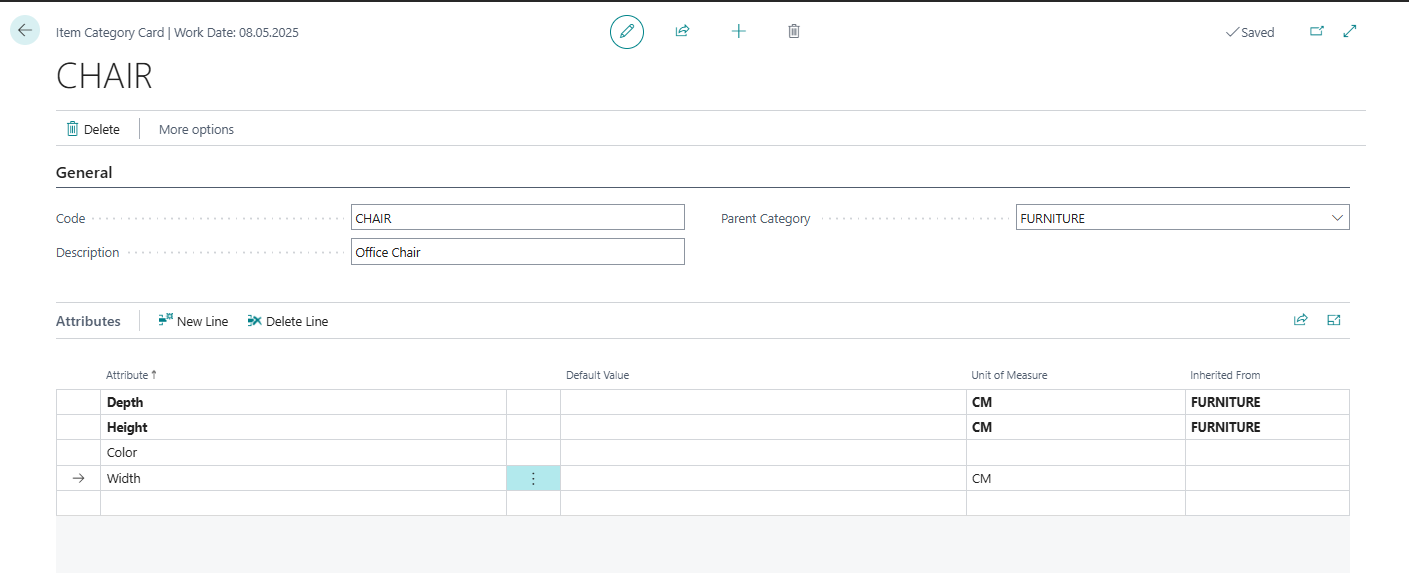
Attributes associated with categories can have default values and units of measure. If the category has a parent category with attributes defined, then the category will inherit the parent category’s attributes, and these attributes will have the “Inherited From” field filled in with the parent category.
In a future article, we will show how to associate attributes with items (using categories) and how to search for items using various attributes.
ELIAN Solutions has been active since 2008 as an implementer of Microsoft Dynamics 365 Business Central . With a team of over 80 specialists and a portfolio of more than 400 clients, ELIAN Solutions is one of the leading ERP partners.